> For the complete documentation index, see [llms.txt](https://support.portsip.com/llms.txt). Markdown versions of documentation pages are available by appending `.md` to page URLs; this page is available as [Markdown](https://support.portsip.com/portsip-communications-solution/high-availability-v22.x/high-availability-and-scalability-on-premise/scaling-im-server-on-premise-for-high-availability.md).
# Scaling IM Server On-Premise for High Availability
With a PortSIP PBX High Availability (HA) deployment, the Instant Messaging (IM) Service must be installed on a separate server.
Before proceeding with this guide, ensure that you have successfully completed the [PortSIP PBX High Availability installation on Ubuntu](/portsip-communications-solution/high-availability-v22.x/high-availability-and-scalability-on-premise/high-availability-installations-on-ubuntu.md).
***
### Install IM Service on a Separate Server
For optimal performance and scalability, the PortSIP IM Service should be deployed on a **dedicated server**, especially in environments with a large number of users exchanging messages and sharing files (including images and attachments).
#### Recommended Hardware Specifications
The following specifications are suitable for supporting **up to 50,000 concurrent users** with active messaging and file sharing:
* **CPU:** 20 cores or higher
* **Memory:** 16 GB RAM
* **Disk:**
* High I/O performance required
* SSD strongly recommended
* Minimum 256 GB
* **Network Bandwidth:**
* 1 Gbps or higher
* Especially important for high message volume and file transfers
***
#### IP Address Requirements
* **Static Private IP:**
* Required
* Example used in this guide: `192.168.1.25`
* **Static Public IP (Cloud Deployments):**
* Required if the PBX and IM server are deployed in the cloud and accessed by Internet users
* Example used in this guide: `104.18.36.110`
***
#### Supported Linux Operating System
To ensure compatibility and stability, all servers in the HA environment must use a consistent Linux OS.
* **Supported OS:** Ubuntu 24.04 (64-bit)
* The IM server **must run the same OS version** as the PBX HA nodes.
***
#### User Account Requirements
For seamless integration with the HA environment, the IM server must meet the following user account requirements:
* The IM server **must use the same username and password as the PBX servers**
* In this guide, the username **`pbx`** is used as an example
* The user account **must have sudo privileges** to execute administrative commands
***
#### Disk Space Recommendations
* **Minimum disk space:** 128 GB
* No separate data partition is required
* For environments with:
* Large numbers of users
* High message volumes
* Frequent file sharing
Allocate **additional disk space as needed** to accommodate message history and file storage growth.
***
#### Network Settings Reference
This guide assumes the following PBX HA network configuration:
* **PBX HA Virtual IP:** `192.168.1.130`
* **PBX Static Public IP:** `104.18.36.119`
These values are used when configuring communication between the PBX and the IM service.
***
#### Step 1: Prepare the Linux Server for IM Installation
The following tasks **must be completed before installing the IM service**:
* Ensure the system date and time are correctly synchronized
* Assign a static private IP address: Example: `192.168.1.25`
* Assign or route the static public IP address (if applicable): Example: `104.18.36.110`
* Install all available system updates and service packs
* Do not install PostgreSQL on the IM server
* Disable all power-saving features: Set the system to High Performance mode
* Do not install:
* TeamViewer
* VPN software
* Similar remote-access tools
* The server must not act as:
* DNS server
* DHCP server
These requirements ensure optimal performance and avoid conflicts with the IM service.
***
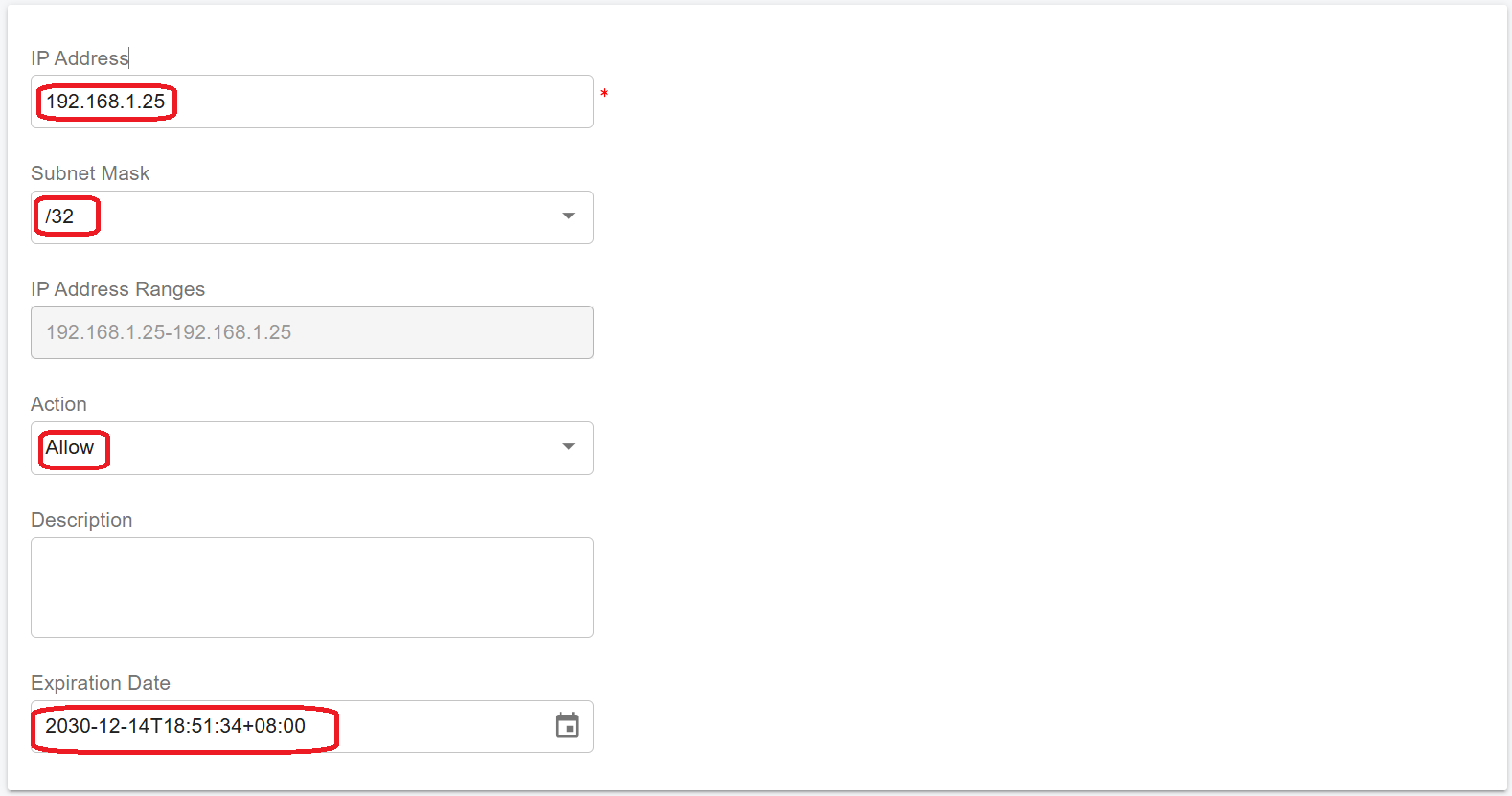
#### Step 2: Configure the IP Address Whitelist
> ⚠️ **IMPORTANT**\
> This step is **mandatory**.\
> The IM service **will not function correctly** unless the IM server IP address is added to the PBX whitelist.
To prevent the PBX from applying request-rate limits to the IM service, you must whitelist the IM server IP address.
#### Whitelist Configuration Steps
1. Sign in to the **PBX Web Portal** as a **System Administrator**
2. Navigate to **IP Blacklist**
3. Click **Add**
4. Enter the **IM server IP address**
5. Set a **long expiration date**
6. Save the configuration
This ensures uninterrupted communication between the PBX and the IM service.
***
#### Step 3: Generate a Token for the IM Server
To allow the IM server to securely authenticate with the PortSIP PBX HA cluster, you must generate an IM server token from the PBX Web Portal.
1. Sign in to the **PortSIP PBX HA Web Portal** as a **System Administrator**.
2. Navigate to **Servers > IM Servers**.
3. Select the **default IM server**.
4. Click **Generate Token**.
The generated token will be used during the IM service installation to establish a trusted and secure connection between the PBX HA cluster and the IM server.
> ⚠️ **IMPORTANT**\
> All commands below for extended servers **must be executed on the `pbx01` node**, regardless of whether it is currently the active node.
#### Step 4: Set Up Password-Free SSH Login
To allow the PBX HA cluster to deploy and manage the IM service, configure password-free SSH access to the IM server.
If prompted to confirm the host authenticity (**yes/no**), type **`yes`** and press **Enter**.
Run the following command **from `pbx01`**:
```bash
ssh-copy-id -i ~/.ssh/id_rsa.pub pbx@192.168.1.25
```
After this step, `pbx01` will be able to access the IM server without requiring a password.
***
#### Step 5: Deploy the IM Service
The IM service deployment **must be initiated from the `pbx01` node** of the PBX HA cluster.
> ⚠️ **IMPORTANT**\
> The deployment process may take several minutes.\
> **Do not interrupt the process, reboot any server, or close the terminal** until the command completes.
#### Deploy IM Service with Default Storage Path
Run the following command on the **pbx01 node only**, specifying both the **static private IP** and **static public IP** of the IM server:
```bash
cd /opt/portsip-pbx-ha-guide/ && /bin/bash im.sh run \
-a 192.168.1.25 \
-A 104.18.36.110
```
***
#### Deploy IM Service with a Custom File Storage Path (Optional)
Run the following command on the **pbx01 node only i**f you want to store IM chat messages and shared files in a custom directory. Use the **`-f`** parameter:
```bash
cd /opt/portsip-pbx-ha-guide/ && /bin/bash im.sh run \
-a 192.168.1.25 \
-A 104.18.36.110 \
-f /data/im
```
Ensure that the specified directory exists and has sufficient disk space and appropriate permissions.
***
#### Parameter Reference
* **`-a`**: Static private IP address of the IM server
* **`-A`**: Static public IP address of the IM server
* **`-f`** *(Optional), c*ustom directory for storing IM chat messages and shared files
***
#### Deployment Verification
If the deployment is successful, the **PBX Web Portal** will display the IM server’s IP address under the **IM Servers** section, confirming that the IM service is correctly registered and connected to the PBX HA cluster.
{% hint style="danger" %}
If your network infrastructure includes an additional firewall, ensure that **TCP port 8887** is allowed in the firewall rules. Client applications require access to this port to **send and receive instant messages**.
{% endhint %}
***
### Managing the IM Server
All IM server management operations are performed using the `im.sh` script provided with the PortSIP PBX HA deployment.
> ⚠️ **IMPORTANT**\
> All commands in this section **must be executed on the `pbx01` node**, regardless of which PBX node is currently active.
***
#### Available Operations
The following operations are supported for managing the IM server:
* **start** – Start the IM service
* **stop** – Stop the IM service
* **restart** – Restart the IM service
* **upgrade** – Upgrade the IM service
* **rm** – Remove the IM service installation
***
#### IM Server Management Commands
Run the appropriate command on **`pbx01`** based on the required operation.
**Start the IM Server**
```bash
cd /opt/portsip-pbx-ha-guide/ && /bin/bash im.sh start
```
**Stop the IM Server**
```bash
cd /opt/portsip-pbx-ha-guide/ && /bin/bash im.sh stop
```
**Restart the IM Server**
```bash
cd /opt/portsip-pbx-ha-guide/ && /bin/bash im.sh restart
```
**Remove the IM Server**
```bash
cd /opt/portsip-pbx-ha-guide/ && /bin/bash im.sh rm
```
> ⚠️ **WARNING**\
> Removing the IM server will stop messaging services and delete the IM service installation.\
> Ensure this operation is performed only during maintenance windows.
***
### Upgrading the IM Server
Follow the steps below to upgrade the IM server in a PortSIP PBX HA environment.
> ⚠️ **IMPORTANT**\
> All upgrade steps **must be performed on the `pbx01` node**, even if `pbx01` is not the current active PBX node.
#### Prerequisites
Before upgrading the IM server:
* Ensure that the PBX HA cluster has already been upgraded by following the guide: [Upgrading High Availability Installation](/portsip-communications-solution/high-availability-v22.x/high-availability-and-scalability-on-premise/upgrading-high-availability-installation.md)
* Ensure the PBX HA cluster is operating normally
***
#### Step 1: Generate a New IM Server Token
1. Sign in to the PortSIP PBX Web Portal as a System Administrator
2. Navigate to **Servers > IM Servers**
3. Select the **default IM server**
4. Click **Generate Token** to generate a new authentication token
***
#### Step 2: Upgrade the IM Server
On **`pbx01`**, run the following command to upgrade the IM service:
```bash
cd /opt/portsip-pbx-ha-guide/ && /bin/bash im.sh upgrade
```
> ⚠️ **IMPORTANT**\
> The upgrade process may take several minutes.\
> **Do not interrupt the process, reboot any server, or close the terminal** until the command completes.
Once the upgrade finishes successfully, the IM service will be restarted automatically with the updated version.