> For the complete documentation index, see [llms.txt](https://support.portsip.com/llms.txt). Markdown versions of documentation pages are available by appending `.md` to page URLs; this page is available as [Markdown](https://support.portsip.com/portsip-communications-solution/portsip-pbx-administration-guide/10-configuring-sbc-for-ms-teams/configure-an-sbc-for-multiple-tenants.md).
# Configure an SBC for Multiple Tenants
PortSIP SBC supports configuring one Session Border Controller (SBC) to serve multiple tenants for Teams Direct Routing.
### 1. Configuring the Tenant Domains in Microsoft Teams
Microsoft provided a detailed guide for configuring Microsoft Teams Direct Routing for multiple tenants; please follow [Configure a Session Border Controller for multiple tenants](https://learn.microsoft.com/en-us/MicrosoftTeams/direct-routing-sbc-multiple-tenants) to set up the tenant domains in the Microsoft 365 admin center.
According to that guide, the following items summarize the configuration of the base domain and subdomains:
* The Teams Direct Routing Base domain is **customers.adatum.biz**.
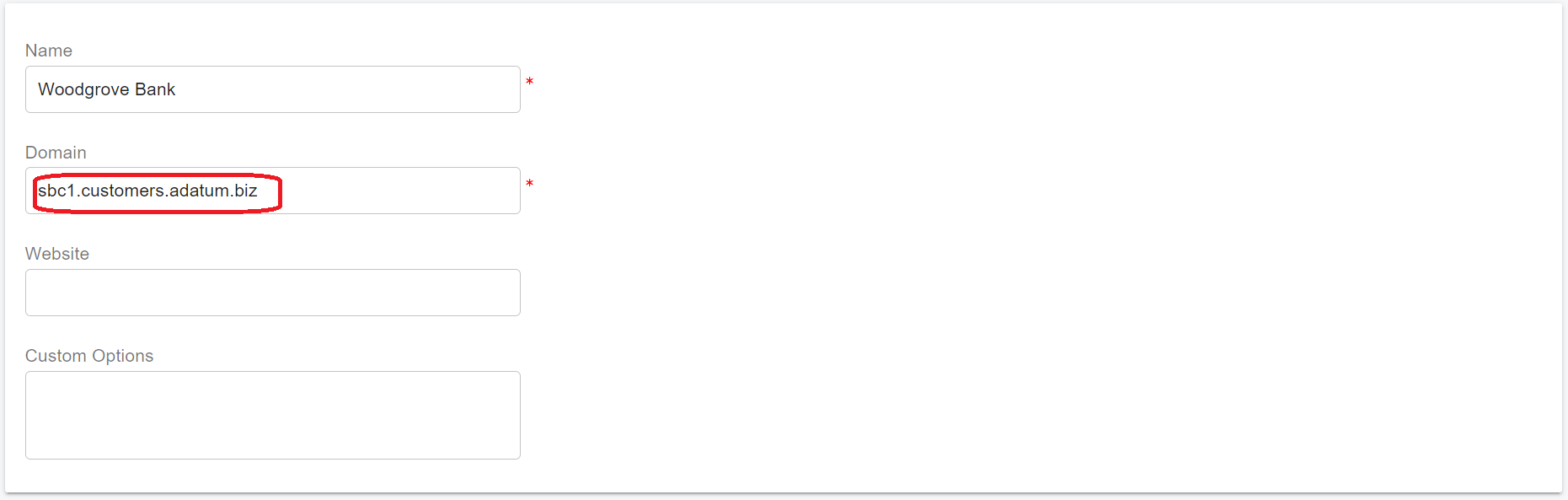
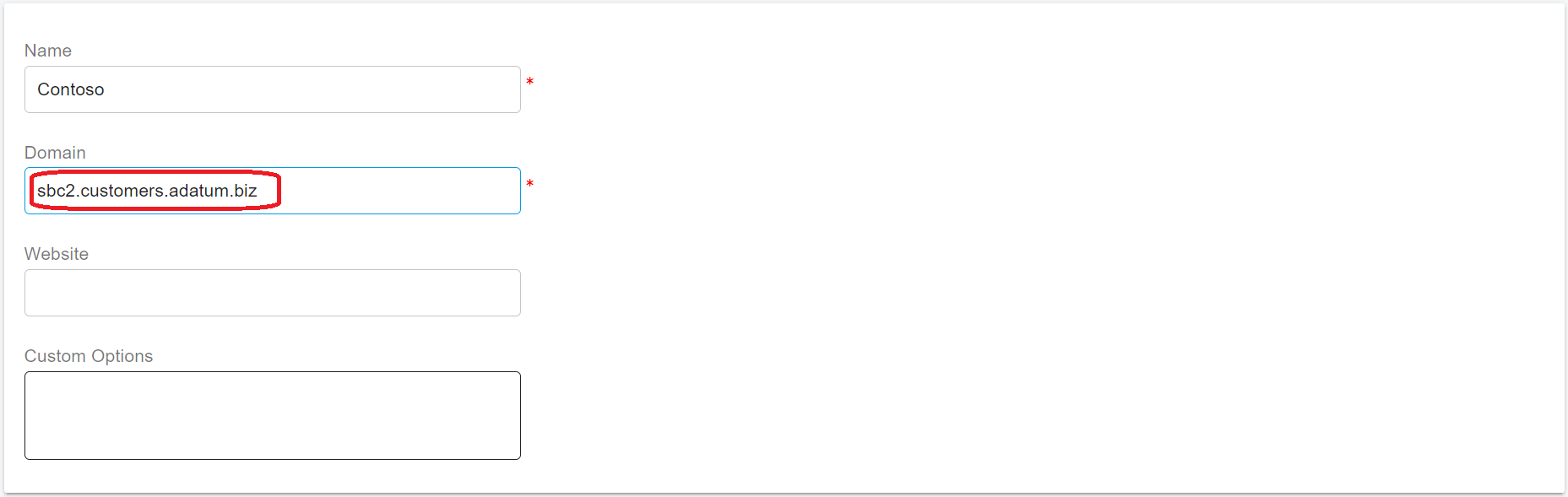
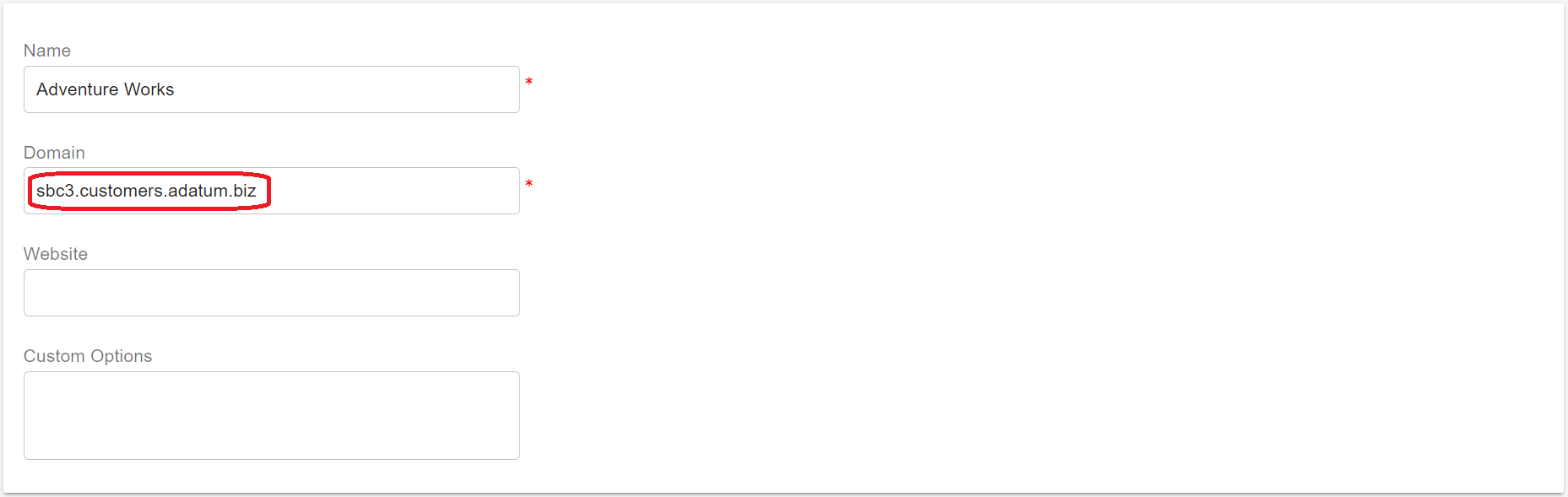
* The tenant domains are **sbc1.customers.adatum.biz**, **sbc2.customers.adatum.biz**, and **sbc3.customers.adatum.biz**.
* a wildcard SSL certificate for the domain **\*.customers.adatum.biz.**
* Resolve the domain **customers.adatum.biz** to the SBC IP address.
### **2. Configuring the PortSIP PBX**
Please follow the guides below to install and configure the PortSIP PBX:
* [Installation of the PortSIP PBX](/portsip-communications-solution/portsip-pbx-administration-guide/1-installation-of-the-portsip-pbx.md)
* [Configuring the PortSIP PBX](#id-2-configuring-the-portsip-pbx)
Now, create three tenants and set their respective SIP domains to **sbc1.customers.adatum.biz**, **sbc2.customers.adatum.biz**, and **sbc3.customers.adatum.biz**.
### 3. Configuring the PortSIP SBC
Please install the PortSIP SBC by following the guide[ Configuring PortSIP SBC](/portsip-communications-solution/portsip-pbx-administration-guide/9-configuring-portsip-sbc.md).
To configure the PortSIP SBC for multiple tenants, please follow the [guide ](/portsip-communications-solution/portsip-pbx-administration-guide/10-configuring-sbc-for-ms-teams/configuring-sbc-and-pbx.md)and pay attention to the following points:
* When adding the TLS certificate in the menu **Settings > TLS Certificates**, enter **customers.adatum.biz** as the TLS domain and select the option **This is an SBC Web Domain Certificate.** Then, copy and paste the wildcard certificate of the domain **\*.customers.adatum.biz** to add the TLS certificate.
* When [adding the Teams Base Domain](/portsip-communications-solution/portsip-pbx-administration-guide/10-configuring-sbc-for-ms-teams/configuring-sbc-and-pbx.md#1-add-teams-base-domain), enter **customers.adatum.biz** as the Teams Base Domain.
* From the menu, select **Settings > Network** and enter **customers.adatum.biz** in the **Web Domain** field.
### **4. Configure Call Routing in the PortSIP PBX**
Please follow the guide [Configuring SBC and PBX](/portsip-communications-solution/portsip-pbx-administration-guide/10-configuring-sbc-for-ms-teams/configuring-sbc-and-pbx.md#2-add-sbc-as-teams-trunk-in-pbx) to create the Teams trunk and inbound and outbound rules for routing calls. Please skip the section **1 Add Teams Base Domain** since we have already completed that step in the previous steps.