> For the complete documentation index, see [llms.txt](https://support.portsip.com/llms.txt). Markdown versions of documentation pages are available by appending `.md` to page URLs; this page is available as [Markdown](https://support.portsip.com/portsip-communications-solution/portsip-pbx-administration-guide/16-call-queue/live-wallboards.md).
# Live Wallboards
### Live Wallboards Overview
PortSIP Contact Center Live Wallboards provide real-time visibility into contact center performance through dynamic, widget-based dashboards. These wallboards allow supervisors and operations teams to monitor key metrics at a glance and tailor the display to their specific operational needs.
Live wallboards can also be displayed on **large screens** in shared environments, making them ideal for team rooms, operations centers, and supervisor dashboards—ensuring everyone stays aligned on current queue and agent performance.
***
### Permissions
Access to Live Wallboards is controlled by user roles and permissions:
* Users assigned the **Tenant Administrator** or **Queue Manager** role can access Live Wallboards by default.
* If you create a **custom role**, you must explicitly grant the **Data Analytics** permission.
* Any user assigned to this custom role will then be able to access Live Wallboards.
This role-based access control ensures secure and appropriate visibility across your contact center operations.
***
### Accessing Live Wallboards
Follow the steps below to access Live Wallboards in the PortSIP PBX web portal:
1. Sign in to the PortSIP PBX web portal using one of the following methods:
* Sign in as a **System Administrator**, then switch to the desired tenant.
* Sign in directly as a **Tenant Administrator** or **Queue Manager**.
2. Navigate to the Wallboards:
* Go to **Contact Center > Wallboard** to view live wallboards for call queues.
* Go to **Contact Center > Agent Activity** to view real-time agent activity boards.
3. View detailed information:
* Click on a **queue** to view detailed statistics for that queue.
* Click on an **agent** to view detailed real-time information for the selected agent.
***
### Queue Details
Click a **queue name** to view detailed information about the selected queue, including the callers currently waiting in the queue.
***
### Agent Activity
Navigate to **Contact Center > Agent Activity** to view the real-time status of all agents, as shown in the screenshot below.
***
### Agent Details
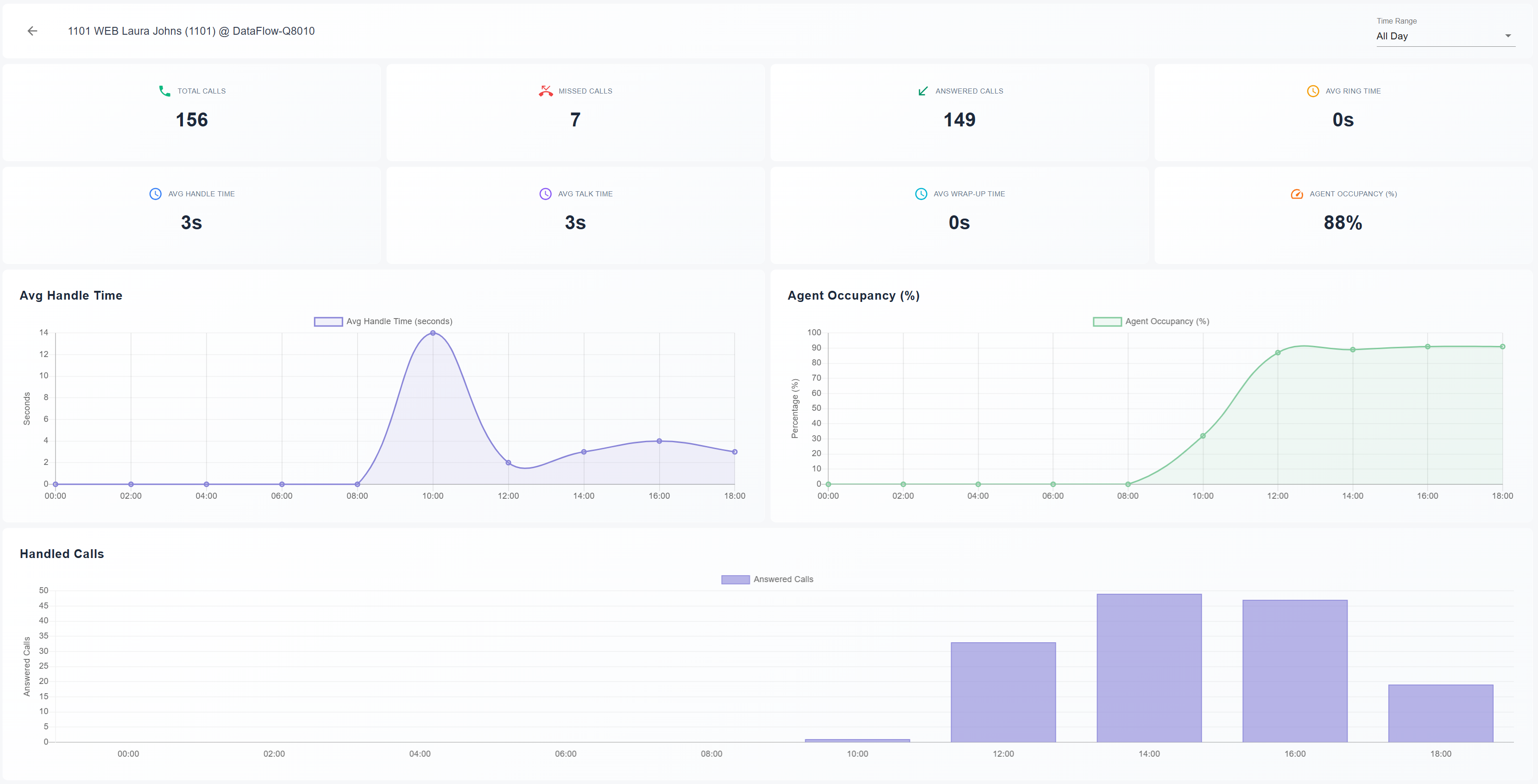
Click an **agent** to display real-time information for that agent, including current status and activity details.