High Availability Installations on Ubuntu
This guide provides step-by-step guidance for deploying a High Availability (HA) PortSIP PBX cluster on Ubuntu Linux. It is intended for system administrators and service providers who require a resilient, production-grade PBX deployment.
Prerequisites
1. Server Architecture
In the examples used throughout this guide, three servers are deployed to form a PortSIP PBX HA cluster. These servers are collectively referred to as PBX nodes.
For clarity, the following naming conventions are used:
All PBX nodes / Three PBX nodes Refers to all servers participating in the HA cluster.
Master Node / Node 1: Hostname:
pbx01Node 2: Hostname:
pbx02Node 3: Hostname:
pbx03
Each node must be dedicated exclusively to the PBX role and configured consistently to ensure reliable failover and data synchronization.
2. Disk Requirements
PortSIP PBX High Availability requires two separate disk volumes on each server.
In this example, each server is provisioned with an 80 GB disk, divided as follows:
System Volume
Device:
/dev/sdaSize: 40 GB
Purpose: Linux operating system installation
This volume is used only for the OS. In production environments, you may allocate a larger size (for example, 100 GB) based on your operational requirements.
Data Volume
Device:
/dev/sdbSize: 40 GB (example)
Purpose: PortSIP PBX data storage
The data volume is used to store:
Databases
Call recordings
Log files
Instant messaging and chat data
Important Disk Requirements
All PBX nodes must use identical disk layouts and exactly the same volume sizes.
The
/dev/sdbdata volume must remain uninitialized and unused prior to installation.Do not format or mount
/dev/sdbmanually. Initializing this disk will cause the HA installation to fail.
Production Recommendation: This volume should be sized generously. For real-world deployments, we strongly recommend 500 GB to 1 TB or larger, depending on call volume, recording retention, and logging policies.
3. Network Configuration
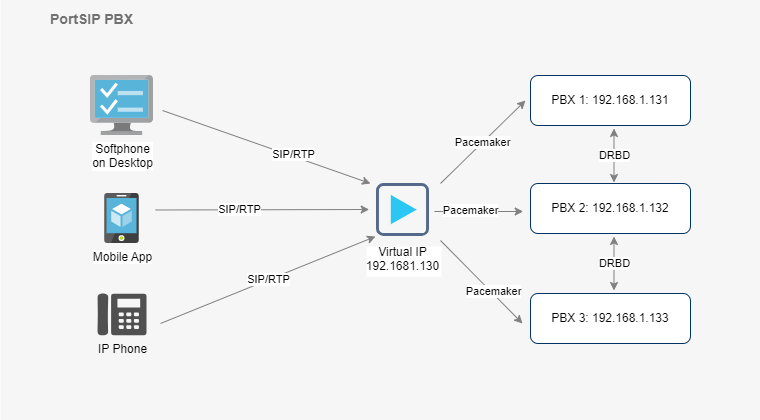
In this guide, the HA cluster is deployed using the following private IP addresses:
pbx01: 192.168.1.131pbx02: 192.168.1.132pbx03: 192.168.1.133
A Virtual IP (VIP) is configured for cluster access:
Virtual IP:
192.168.1.130
A static public IP is routed to the Virtual IP:
Public IP:
104.18.36.119→192.168.1.130
This architecture ensures seamless client access and automatic failover between PBX nodes.
Network Requirements
All IP addresses must be static. DHCP-assigned addresses are not supported.
During Ubuntu installation, ensure that Netplan is used for network configuration.
4. Supported Linux Operating System
PortSIP PBX High Availability on Ubuntu supports the following operating system version:
Ubuntu 24.04 LTS (64-bit)
Ensure the OS is fully updated before proceeding with the installation.
5. User Account Requirements
All servers in the HA cluster must use the same system username and password.
In this guide:
Username:
pbx(example)
The user account must:
Have sudo privileges to be able to execute administrative commands without restriction
If you follow this guide from the beginning, the pbx user will be created automatically with the required sudo permissions. No additional configuration is necessary.
Architecture
Figure 1-1 PortSIP PBX HA Architecture

Notes
Ensure that each server is provisioned with at least 4 CPU cores and 4 GB of RAM. Additional resources may be required for high call volumes or advanced features such as call recording and analytics.
Unless explicitly stated otherwise, all commands and configuration steps in this guide must be performed on the master node, which is identified as
pbx01.During the Linux operating system installation, you must create a system user named
pbx. All Linux commands related to the PortSIP PBX High Availability configuration must be executed using this user account.During the HA setup process, you may be prompted to enter the
pbxuser password multiple times. Please provide the password when prompted to allow the installation and configuration steps to proceed.The username
pbxused throughout this guide is for example purposes only. You may choose a different username; however, the same username and password must be created and used consistently across all PBX nodes in the cluster.
Install Ubuntu Operating System
This section walks you through the installation and initial configuration of the Ubuntu operating system on all three PBX nodes in the High Availability cluster.
In this guide, Ubuntu 24.04 LTS (64-bit) is used as the reference operating system.
User Account Configuration
Throughout this guide, the system user pbx is used as an example.
The user account must have sudo privileges in order to execute administrative commands.
If you follow the steps in this guide during the Ubuntu installation process, the
pbxuser will be created automatically with the required sudo permissions, and no additional configuration is needed.
Note: The username
pbxis used for demonstration purposes only. You may choose a different username, but the same username and password must be created and used consistently on all PBX nodes.
Select language

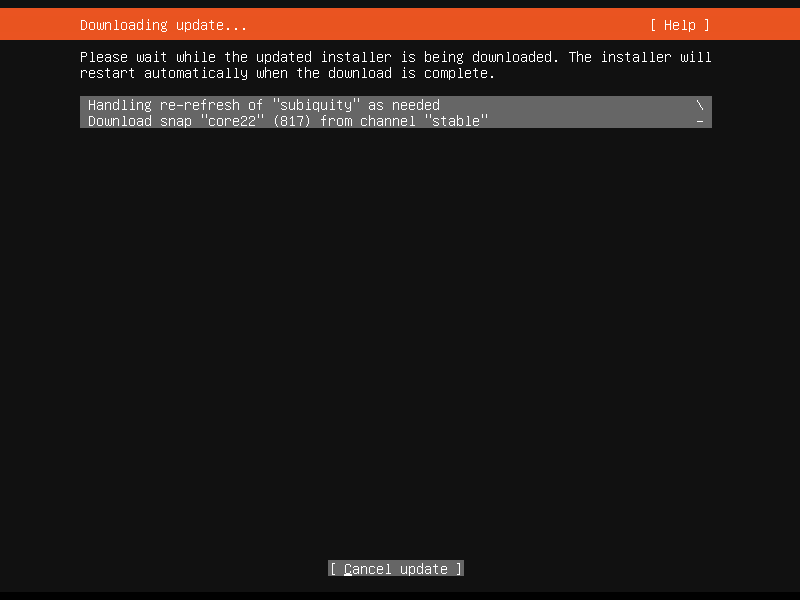
Install available updates for the installer


Keyboard configuration

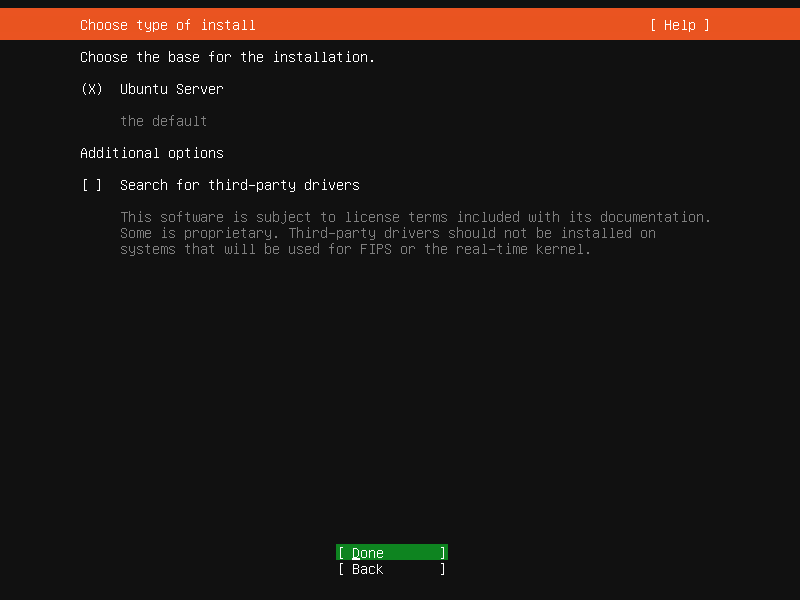
Choose the type of install
Please choose the Ubuntu Server.

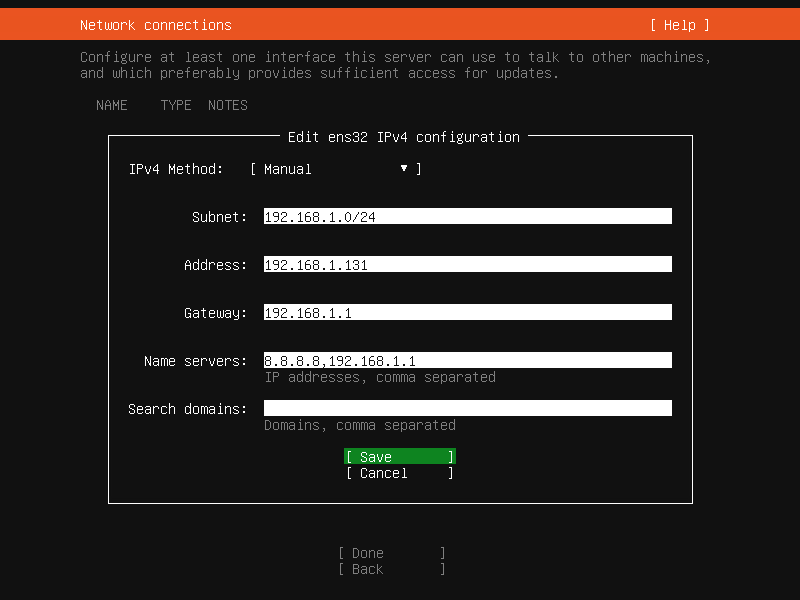
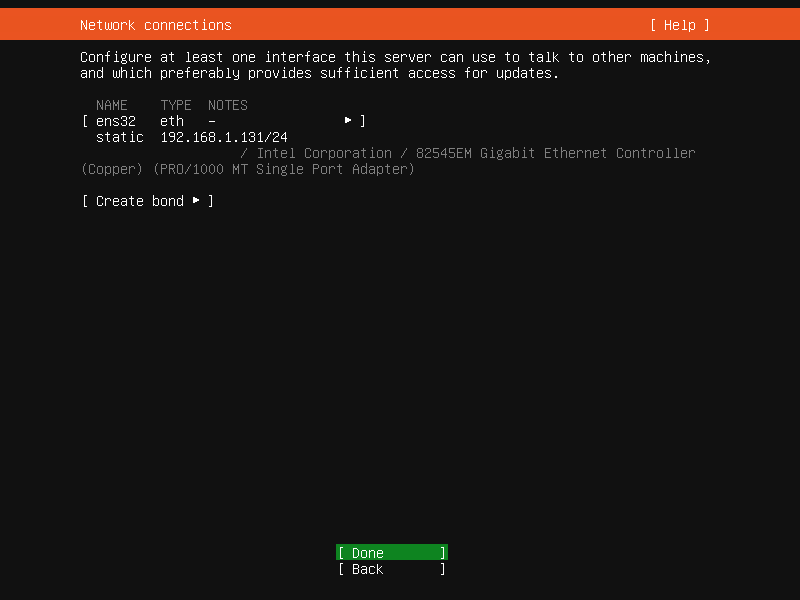
Network connections
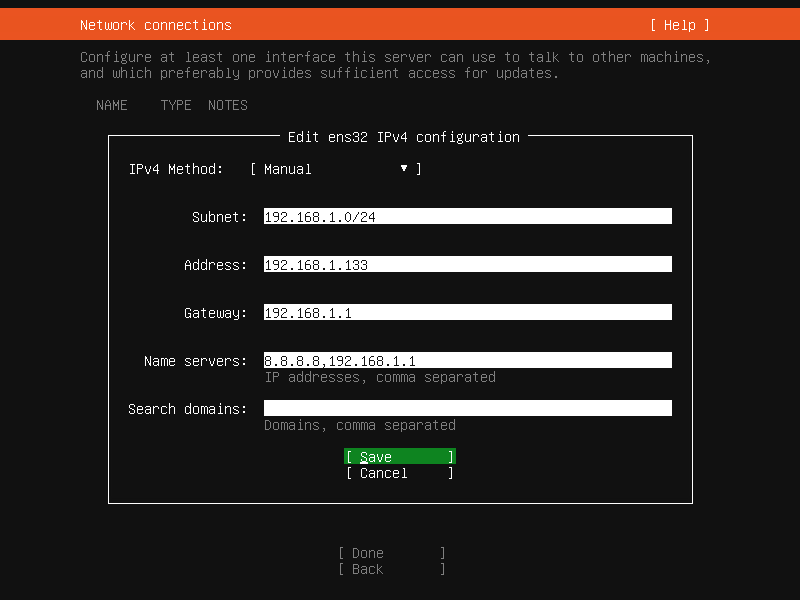
Please configure a static IP address for the server manually.


For the PBX node 1 (pbx01):


For the PBX node 2 (pbx02):


For the PBX node 3 (pbx03):


Configure proxy
Keep it as the default settings.

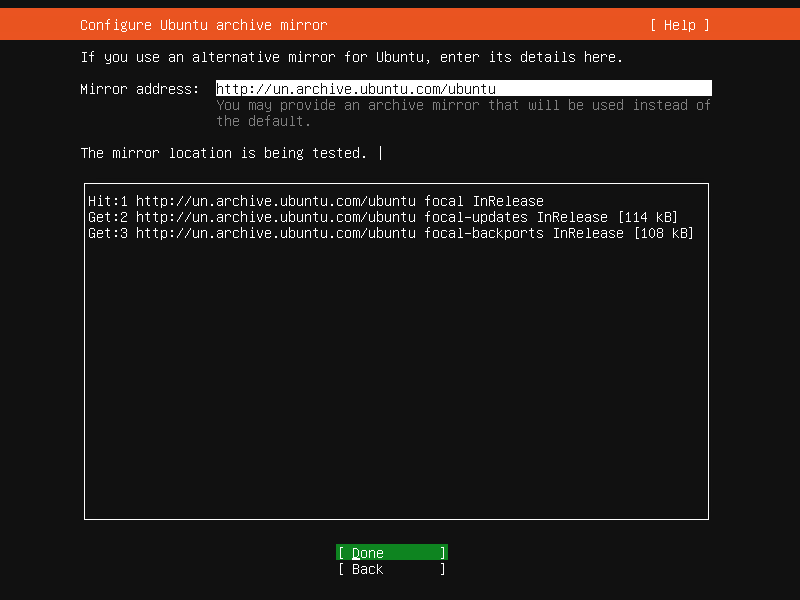
Configure Ubuntu archive mirror
Keep it as the default settings.

Guided storage configuration
Keep it as the default settings.

Storage configuration
Keep the storage configuration at its default settings.
The disk device
/dev/sdbmust remain unused and uninitialized. Otherwise, the HA installation will fail.


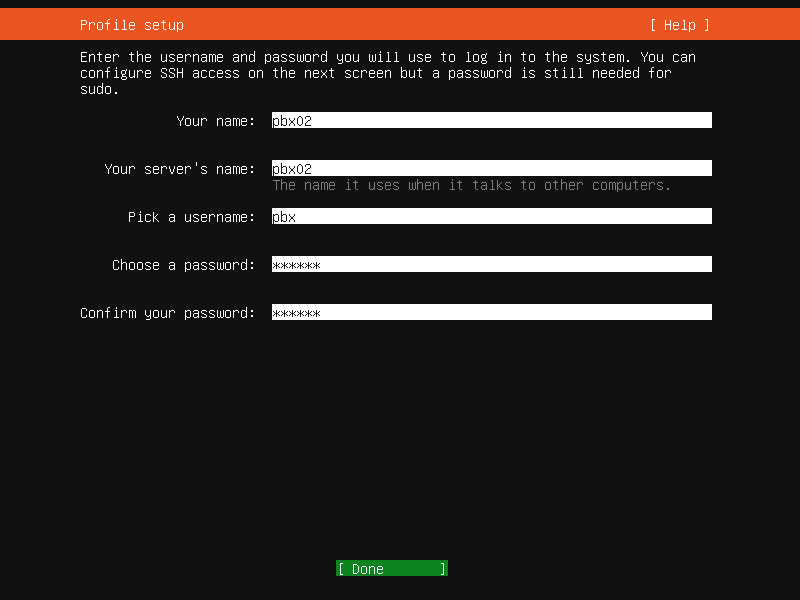
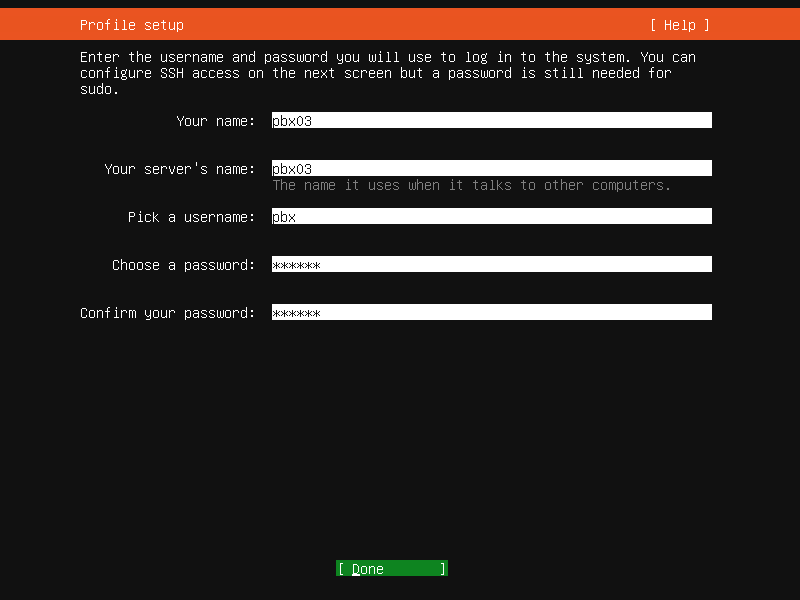
Profile setup
On all three PBX servers, create a system user named pbx.
The
pbxuser must have sudo privileges to perform administrative tasks.The same username and password must be used on all PBX servers to ensure a consistent and successful High Availability configuration.
For the PBX node 1 (pbx01):

For the PBX node 2 (pbx02):

For the PBX node 3 (pbx03):

Upgrade to Ubuntu Pro
Keep it as the default settings: Skip for now.

SSH Setup
Install the OpenSSH server.

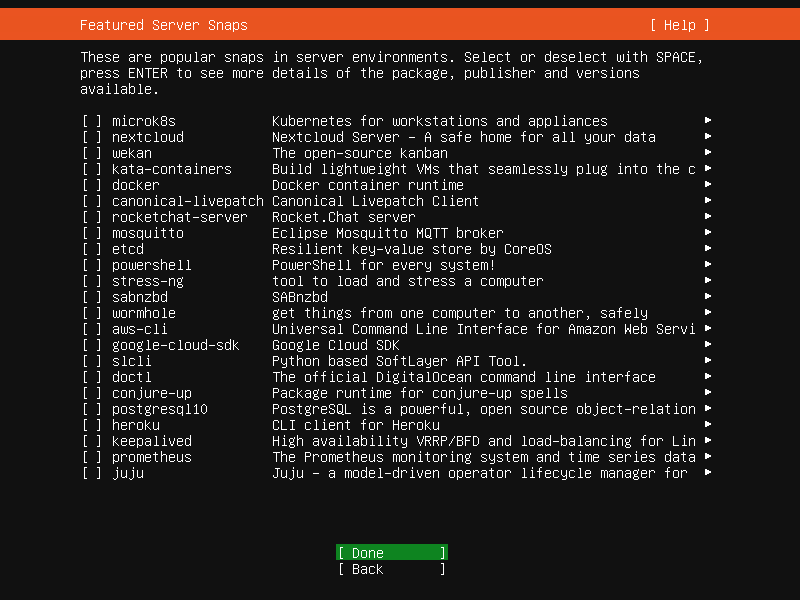
Featured Server Snaps
Keep it as the default settings.

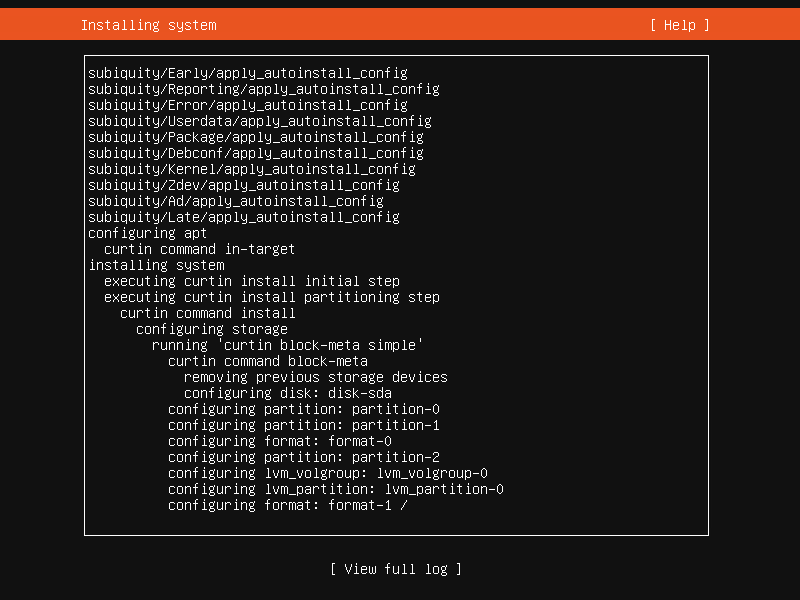
Installing system
Start the process of installing the operating system and remain patient while it completes.

Install complete
Once the system is successfully installed, reboot the system (Reboot Now).

After the server reboot, use the "pbx" user credentials created during installation to log in and continue with the following steps.
Configure Hostname Resolution
To ensure proper communication between PBX nodes, you must configure hostname resolution on all three servers.
Perform the following steps on each node: pbx01, pbx02, and pbx03.
⚠️ IMPORTANT Replace the IP addresses and hostnames in the example below with the actual values for your environment.
Run the following command to update the /etc/hosts file:
This configuration ensures that each PBX node can reliably resolve the hostnames of the other nodes, which is required for cluster coordination and High Availability operations.
Set Up Password-Free SSH Login
In this guide:
pbx01refers to Node 1 (Master Node)pbx02refers to Node 2pbx03refers to Node 3
All commands in this section must be executed only on pbx01, unless explicitly stated otherwise.
Password-free SSH access is required to allow the PortSIP PBX HA components to securely communicate and coordinate across nodes.
Step 1: Generate the SSH Key Pair
On pbx01, generate an SSH key pair for the pbx user:

When prompted:
Press Enter to accept the default file location.
Press Enter to leave the passphrase empty (recommended for HA automation).
This will generate the SSH private and public keys under the ~/.ssh/ directory.
Step 2: Configure Password-Free Login for All PBX Nodes
On pbx01 only, copy the public key to all PBX nodes:
If prompted with a yes/no confirmation (for example, to trust the host), type
yesand press Enter.When prompted, enter the
pbxuser password for each node.
After this step, the pbx user on pbx01 will be able to log in to all PBX nodes without requiring a password.
Verification (Optional but Recommended)
To verify password-free access, run the following commands from pbx01:
If the login succeeds without prompting for a password, the configuration is complete.
Configuring PortSIP PBX HA
All steps in this section must be performed on the master node (pbx01) only, unless explicitly stated otherwise.
Step 1: Download the PBX HA Resource Package
On pbx01, download and extract the PortSIP PBX HA resource package:
This package contains the HA deployment scripts and configuration templates required for cluster installation.
Step 2: Configure HA Variables
Before proceeding, prepare the values for your environment, including hostnames, IP addresses, virtual IP, and disk configuration.
Name
Type
Description
pbx01_hostname
string
The hostname of node 1, in this case is pbx01
pbx02_hostname
string
The hostname of node 2, in this case is pbx02
pbx03_hostname
string
The hostname of node 3, in this case is pbx03
pbx01_private_ip
string
The private static IP of node 1, in this case is 192.168.1.131
pbx02_private_ip
string
The private static IP of node 2, in this case is 192.168.1.132
pbx03_private_ip
string
The private static IP of node 3, in this case is 192.168.1.133
vip
string
The virtual IP in this case is 192.168.1.130
pbx_image
string
PortSIP PBX docker image in this case is portsip/pbx:22
pbx_datapath_disk
string
The disk volume for PBX data store in this case is /dev/sdb
pbx_datapath_size
string
The disk volume size for PBX data store,in this case is 36G(If set as full 40G maybe report error); For example if the disk volume size is 500G , suggest set as 490G.
On pbx01 only, create and edit the HA variables file:
⚠️ IMPORTANT
Ensure all hostnames and IP addresses match your actual environment.
Step 3: Install Required Dependencies
On pbx01 only, install all required system dependencies for the HA environment:
This script installs and configures the necessary system packages and services required by the PortSIP PBX HA framework.
Step 4: Reboot All PBX Servers
Once the dependencies installation completes, all PBX nodes must be rebooted to apply system-level changes.
Process the reboot process from pbx01 only by commands below(keep the order):
Initialize HA Resources
All steps in this section must be executed only on the master node (pbx01).
On pbx01, run the following command to initialize the PortSIP PBX HA resources:
⚠️ IMPORTANT This process may take several minutes to complete. Do not interrupt, restart, or shut down any server while the script is running, as doing so may cause the HA deployment to fail.
Once the resource initialization completes successfully, the PortSIP PBX services will be deployed and started across the cluster.
Open a web browser and access the PBX Web Portal using the Virtual IP (VIP):
Note: All future PBX access, administration, and configuration must be performed using the virtual IP (
192.168.1.130), not the individual node IP addresses.
Configure PortSIP PBX
When you sign in to the PBX Web Portal for the first time, the Setup Wizard will launch automatically.
Setup Wizard Configuration
In the first step of the Setup Wizard:
Locate the Private IPv4 field, enter the HA Virtual IP address
192.168.1.130Locate the Public IPv4 field and enter the public IP address
104.18.36.119. If your deployment does not use a public IP address, leave this field empty.
If your environment uses a different virtual IP, enter your actual configured VIP instead.

Complete the Setup Wizard by following the on-screen instructions.
Enable Call Recovery
After completing the Setup Wizard, enable call recovery to ensure seamless failover for active calls:
Navigate to Advanced > Settings > Advanced
Enable the Call Recovery option
Click OK to save the configuration
Enabling Call Recovery ensures that active calls can be recovered automatically in the event of a PBX node failure, providing true High Availability behavior.
Install PortSIP IM Service
With the PortSIP PBX High Availability deployment complete, you are now ready to install the PortSIP Instant Messaging (IM) Service.
Please follow the Scaling IM Server On-Premise for High Availability guide to complete the installation and configuration.
Install PortSIP Data Flow Service
With the PortSIP PBX High Availability deployment complete, you are now ready to install the PortSIP Data Flow Service.
Please follow the Scaling Data Flow Server On-Premise for High Availability guide to complete the installation and configuration.
Install PortSIP SBC Service
With the PortSIP PBX High Availability deployment complete, you are now ready to install the PortSIP SBC Service.
Please follow the Scaling SBC On-Premise for High Availability guide to complete the installation and configuration.
Managing PortSIP PBX High Availability
Once the PortSIP PBX High Availability cluster has been successfully configured, you can manage and monitor the HA environment using the commands described below.
⚠️ IMPORTANT All HA management commands must be executed only on the master node (
pbx01).
View PBX HA Status
To check the current status of the PBX HA cluster, run the following command on pbx01:
Expected Output (Healthy HA State)
The following output indicates that the PBX HA cluster is operating correctly and that the master and slave roles are properly assigned:
This output confirms that:
pbx01is currently the active master nodepbx02andpbx03are functioning as standby nodesThe Virtual IP, data path, and PBX service are running on the master node
Data replication and HA resource management are functioning normally
Restart the PBX Service
If you need to restart the PBX service (for example, after configuration changes), run the following command on pbx01:
Expected Output
The following output indicates that the PBX service has been successfully restarted under HA control:
Last updated