> For the complete documentation index, see [llms.txt](https://support.portsip.com/llms.txt). Markdown versions of documentation pages are available by appending `.md` to page URLs; this page is available as [Markdown](https://support.portsip.com/portsip-communications-solution/portsip-pbx-administration-guide/1-installation-of-the-portsip-pbx/installation-of-portsip-pbx-v22.x/install-im-service.md).
# Install IM Service
Before proceeding with this guide, ensure that you have already completed **steps 1–4** of the [Install PortSIP PBX](/portsip-communications-solution/portsip-pbx-administration-guide/1-installation-of-the-portsip-pbx/installation-of-portsip-pbx-v22.x/install-portsip-pbx.md) guide.
You have two options for deploying the **PortSIP IM Server**, depending on your scale and performance requirements:
#### Option 1: Deploy on the Same Server as PortSIP PBX
For environments with a **smaller number of users**, you can install the IM service on the **same server** as the PortSIP PBX.\
This approach simplifies deployment and management but may not deliver optimal performance as user volume and messaging activity increase.
#### Option 2: Deploy on a Separate Server
For better performance and scalability, especially in deployments with a **large number of users** or **heavy usage of chat and file-sharing features**, it is strongly recommended to install the IM server on a dedicated, higher-performance server.
This deployment model helps ensure responsive messaging performance while preventing additional load on the core PBX services.
{% hint style="warning" %}
All commands must be executed in the **`/opt/portsip`** directory.
{% endhint %}
***
### Install IM Service on the Same Server as PortSIP PBX
> ❗ **Important**\
> Follow every step in this guide in order. Do not skip any steps unless the guide explicitly says you can.
Follow the steps below to install the **PortSIP Instant Messaging (IM) Server** on the **same server** as the PortSIP PBX.
#### Step 1: Generate a Token for the IM Server
1. Log in to the **PortSIP PBX Web Portal** as a **System Administrator**.
2. Navigate to **Servers > IM Servers**.
3. Select the **default IM server**.
4. Click **Generate Token**.
5. Copy and securely store the generated token. This token will be required when starting the IM service container.
***
#### Step 2: Create and Run the Instant Messaging Docker Instance
Follow these steps to create and start the IM service Docker container.
1. Navigate to the PortSIP installation directory:
```bash
cd /opt/portsip
```
2. Run the following command to create and start the IM service Docker instance.\
Replace the placeholders with your actual values:
* `-p` : Specifies the directory used to store IM service data
* `-i` : Specifies the PortSIP PBX Docker image version
* `-t` : Specifies the token generated in **Step 1**
```bash
sudo /bin/sh im_ctl.sh run \
-p /var/lib/portsip/ \
-i portsip/pbx:22 \
-t OWMWYWJKZJYTMWM2NI0ZNZJMLWJJZDKTMGVMZDYXNZU1NWI1
```
3. Once the container starts successfully, the **PortSIP PBX Web Portal** will display the IM server IP address under **Servers > IM Servers**, indicating that the IM service is running correctly.
***
#### Installation Complete
The Instant Messaging (IM) Service has now been successfully installed on the same server as the PortSIP PBX.
You can now proceed to Step 6: [Install the Data Flow Service](/portsip-communications-solution/portsip-pbx-administration-guide/1-installation-of-the-portsip-pbx/installation-of-portsip-pbx-v22.x/install-portsip-pbx.md#step-6-install-the-data-flow-service) in the Install PortSIP PBX guide.
***
### Install IM Service on a Separate Server
> ❗ **Important**\
> Follow every step in this guide in order. Do not skip any steps unless the guide explicitly says you can.
For optimal performance and scalability, it is recommended to install the PortSIP Instant Messaging (IM) service on a separate server, especially in deployments with a large number of users or heavy usage of chat and file-sharing features (including files and images).
The following specifications are suitable for supporting **up to 50,000 concurrent online users** with messaging and file sharing.
***
#### Recommended Hardware Specifications
* **CPU**: 20 cores or higher
* **Memory**: 16 GB RAM
* **Disk**: High I/O performance required (SSD recommended, minimum 256 GB)
* **Network Bandwidth**: 1 Gbps or higher, especially for high message and file transfer volumes
* **Static Private IP**: Required, for example: `192.168.1.25`
* **Static Public IP**: Required for internet-facing deployments, for example: `104.18.36.110`
***
#### Supported Linux Operating Systems
The IM server supports **64-bit Linux operating systems only**:
* Ubuntu 22.04, 24.04
* Debian 12
***
#### Deployment Assumptions
For this guide, the following environment is assumed:
* **PBX Server**
* Static private IP: `192.168.1.20`
* Static public IP: `104.18.36.119`
* **IM Server**
* Static private IP: `192.168.1.25`
* Static public IP: `104.18.36.110`
***
#### Step 1: Prepare the Linux Server for IM Installation
The following tasks **must be completed before installing the IM server**:
* Ensure the system date and time are correctly synchronized.
* Assign a **static private IP address** (example: `192.168.1.25`).
* Assign or route a **static public IP address** (example: `104.18.36.110`).
* Install all available system updates and service packs.
* **Do not install PostgreSQL** on this server.
* Disable all power-saving features (set the system to **High Performance** mode).
* Do **not** install TeamViewer, VPN software, or similar tools.
* The server **must not** act as a DNS or DHCP server.
* If hosted in the cloud (AWS, Azure, GCE), ensure **TCP port 8887** is allowed in firewall rules.\
This port is required for client messaging traffic.
***
#### Step 2: Configure the Firewall on the PBX Server
To allow the IM server (`192.168.1.25`) to communicate with the PBX server (`192.168.1.20`), configure firewall rules on the PBX server.
Run the following commands **on the PBX server**:
```bash
sudo firewall-cmd --permanent --zone=trusted --add-source=192.168.1.25
sudo firewall-cmd --reload
```
To verify the rule:
```bash
sudo firewall-cmd --zone=trusted --list-all
```
Expected output:
```shellscript
[ubuntu@localhost ~]$ sudo firewall-cmd --zone=trusted --list-all
trusted (active)
target: ACCEPT
icmp-block-inversion: no
interfaces:
sources: 192.168.1.25
services:
ports:
protocols:
forward: yes
masquerade: no
forward-ports:
source-ports:
icmp-blocks:
rich rules:
```
***
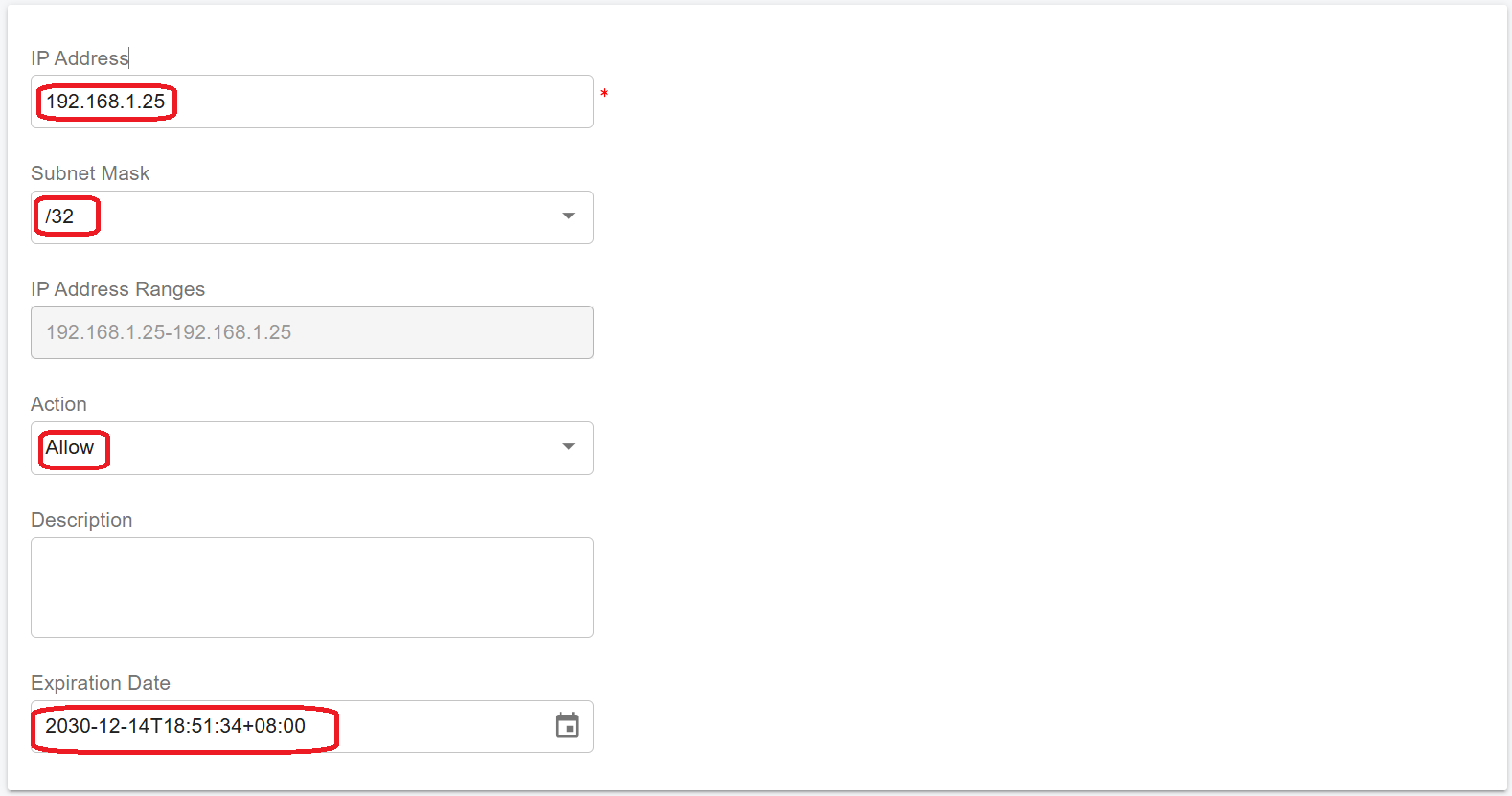
#### Step 3: Configure the IP Address Whitelist (Mandatory)
This step is **mandatory**. The IM service will not function without it.
To prevent the PBX from applying request rate limits to the IM server:
1. Log in to the **PortSIP PBX Web Portal** as a **System Administrator**.
2. Navigate to **IP Blacklist > Add**.
3. Enter the IM server IP address (`192.168.1.25`).
4. Select a **long expiration date** and save the entry.
***
#### Step 4: Configure Cloud Firewall or Network Security Rules
Skip this step if you are **not** deploying in a cloud environment.
If the PBX and IM server are hosted on **AWS, Azure, or Google Cloud**:
* Create a firewall or security group rule allowing **all TCP traffic** from the IM server IP to the PBX server IP.
> ⚠️ **Note**\
> Restrict this rule to the **internal IP range** of your deployment to maintain security.
***
#### Step 5: Generate a Token for the IM Server
1. Log in to the **PortSIP PBX Web Portal** as a **System Administrator**.
2. Navigate to **Servers > IM Servers**.
3. Select the **default IM server**.
4. Click **Generate Token**.
5. Copy and securely store the generated token.
***
#### Step 6: Create and Run the Instant Messaging Docker Instance
All commands must be executed in the **`/opt/portsip`** directory on the IM server.
**Initialize the Environment**
```bash
sudo mkdir -p /opt/portsip
cd /opt/portsip
sudo curl https://raw.githubusercontent.com/portsip/portsip-pbx-sh/master/v22.x/init.sh -o init.sh
sudo /bin/sh init.sh
```
**Install Docker and Docker Compose**
```bash
sudo /bin/sh install_docker.sh
```
If prompted with:
```
cloud.cfg (Y/I/N/O/D/Z) [default=N] ?
```
Enter **Y** and press **Enter**.
***
**Create the IM Service Docker Instance**
Command parameters:
* `-E` : Extended mode (required for separate server deployment)
* `-p` : IM service data directory
* `-a` : IM server private IP
* `-A` : IM server public IP (required for cloud deployments)
* `-i` : PortSIP PBX Docker image version
* `-x` : PBX server IP (use VIP if PBX is in HA mode)
* `-t` : Token generated in Step 5
* `-f` : Optional directory for storing chat files (must differ from `-p`)
Example:
```bash
sudo /bin/sh im_ctl.sh run -E \
-p /var/lib/portsip/ \
-a 192.168.1.25 \
-A 104.18.36.110 \
-i portsip/pbx:22 \
-x 192.168.1.20 \
-t OWMWYWJKZJYTMWM2NI0ZNZJMLWJJZDKTMGVMZDYXNZU1NWI1
```
Example with a separate directory for chat files:
```bash
sudo /bin/sh im_ctl.sh run -E \
-p /var/lib/portsip/ \
-f /chat/files/ \
-a 192.168.1.25 \
-A 104.18.36.110 \
-i portsip/pbx:22 \
-x 192.168.1.20 \
-t OWMWYWJKZJYTMWM2NI0ZNZJMLWJJZDKTMGVMZDYXNZU1NWI1
```
***
**Restart the IM Service**
Ensure the PBX service is running on the PBX server, then restart the IM service:
```bash
cd /opt/portsip
sudo /bin/sh im_ctl.sh restart
```
If the setup is successful, the **PortSIP PBX Web Portal** will display the IM server IP under **Servers > IM Servers**.
***
#### Installation Complete
The Instant Messaging (IM) Service has been successfully installed on a separate server from the PortSIP PBX.
You can now proceed to Step 6: [Install the Data Flow Service](/portsip-communications-solution/portsip-pbx-administration-guide/1-installation-of-the-portsip-pbx/installation-of-portsip-pbx-v22.x/install-portsip-pbx.md#step-6-install-the-data-flow-service) in the Install PortSIP PBX guide.