> For the complete documentation index, see [llms.txt](https://support.portsip.com/llms.txt). Markdown versions of documentation pages are available by appending `.md` to page URLs; this page is available as [Markdown](https://support.portsip.com/portsip-communications-solution/portsip-pbx-administration-guide/15-shared-voicemail.md).
# 15 Shared Voicemail
### Overview
In some scenarios, multiple extensions or groups within your organization may need to share a **single voicemail box**. This is commonly used for:
* A main company number
* A Virtual Receptionist (Auto Attendant)
* A Ring Group
* A Call Queue
A shared voicemail ensures that important messages are captured even when no individual user answers the call.
#### Example Scenario
**Example A**\
A company uses one shared voicemail box for all incoming calls to the main number:
* A caller reaches the **Virtual Receptionist** and presses **5** to leave a message, **or**
* The call is routed to the **Sales** or **IT** group and no one answers
In both cases, the call is redirected to the same shared voicemail box.
***
### Creating a Shared Voicemail
1. Sign in to the **PortSIP PBX Web Portal**.
2. Navigate to **Call Manager > Advanced Services > Shared Voicemail**.
3. Click **Add**.
#### Configure the Following Fields
* **Extension Number**\
The unique number that identifies the shared voicemail.\
This must be a new number and **must not** conflict with any existing extension.
* **Display Name**\
A friendly name for the shared voicemail box.
* **Prompt Language**\
Select the language used for voicemail prompts.
* **PIN Number**\
Set the voicemail box password.
* **Email**\
Specify the email address that will receive voicemail notifications.
* **Voicemail PIN Authentication**\
Enable this option to require a PIN when users access this shared voicemail.
* **Send email when receiving a voicemail**\
Enable or disable email notifications for new voicemail messages.
Save the configuration to create the shared voicemail.
***
### Redirecting Calls to a Shared Voicemail
You can redirect unanswered or failed calls to a shared voicemail from several call-handling features.
***
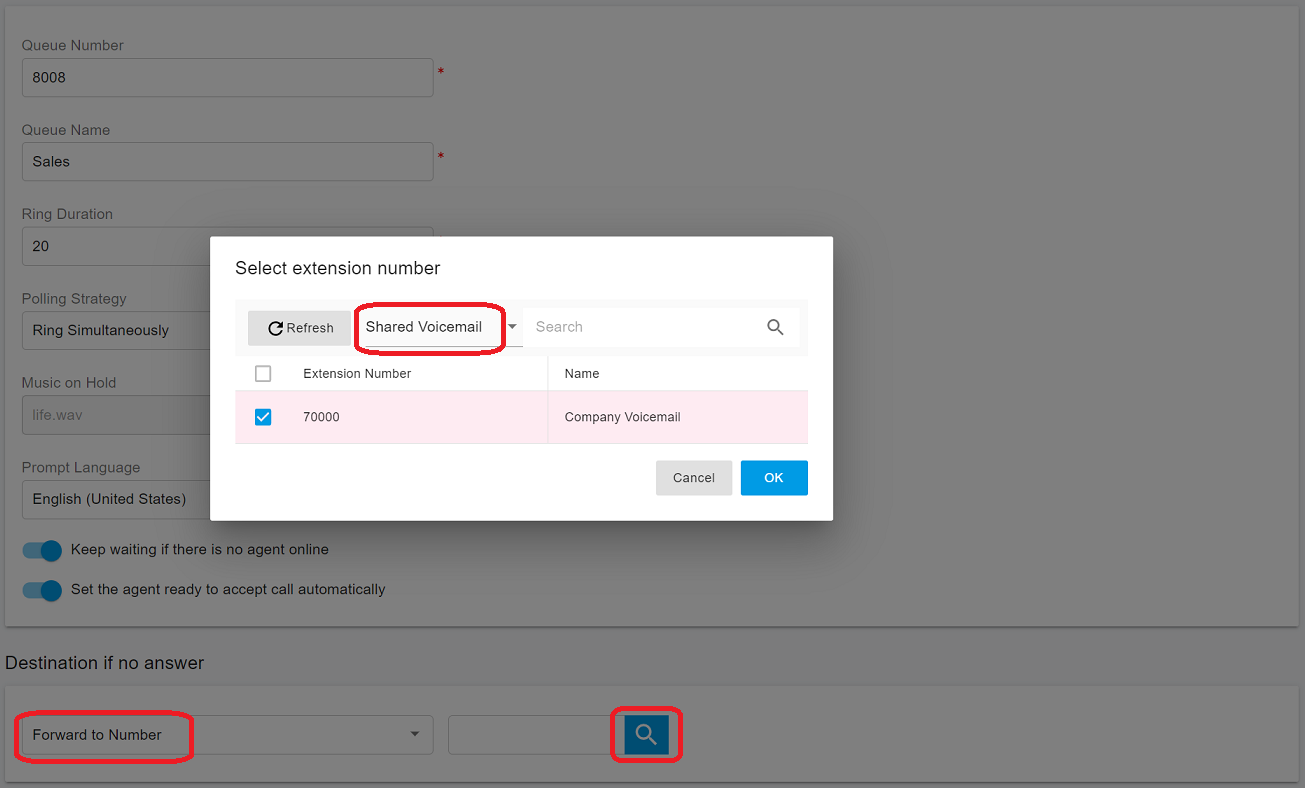
#### Call Queue
To redirect unanswered queue calls:
1. Open the Call Queue settings.
2. Set **Destination if no answer** to **Forward to Number**.
3. In the popup window, select **Shared Voicemail**.
4. Choose the desired shared voicemail.
5. Click **OK**.
***
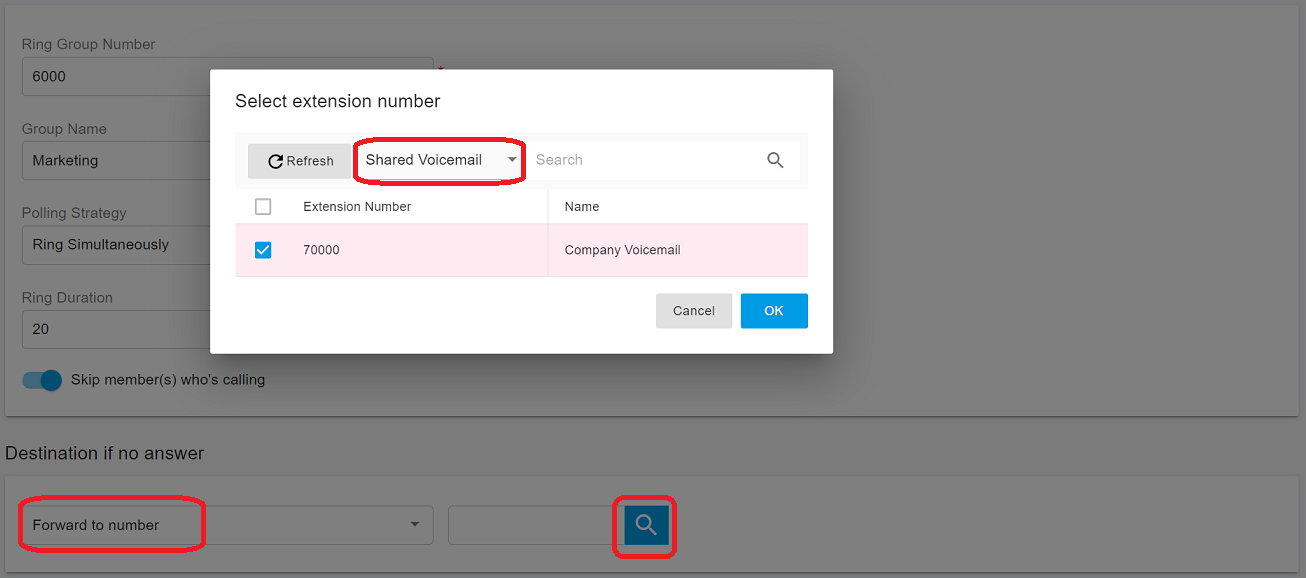
#### Ring Group
To redirect unanswered ring group calls:
1. Open the Ring Group settings.
2. Set **Destination if no answer** to **Forward to Number**.
3. Select **Shared Voicemail**.
4. Choose the shared voicemail.
5. Click **OK**.
***
#### Virtual Receptionist
To redirect failed Virtual Receptionist calls:
1. Open the Virtual Receptionist settings.
2. Set **Call Failed** to **Forward to Number**.
3. Select **Shared Voicemail**.
4. Choose the shared voicemail.
5. Click **OK**.
***
#### Extension
To redirect extension calls to a shared voicemail:
1. Open the extension settings.
2. Set the **Call Forward Destination** to **Forward to Number**.
3. Select **Shared Voicemail**.
4. Choose the shared voicemail.
5. Click **OK**.
***
#### Inbound Rule
To redirect inbound calls to a shared voicemail:
1. Open the inbound rule configuration.
2. Set the **Call Forward Destination** to **Forward to Number**.
3. Select **Shared Voicemail**.
4. Choose the shared voicemail.
5. Click **OK**.
***
### Accessing a Shared Voicemail
#### From an IP Phone or Client App
1. Dial **\*56** followed by the **shared voicemail number**.
2. When prompted, enter the voicemail **PIN**.
This method works from:
* IP phones
* Softphones
* Mobile and desktop client apps
***
#### From the PBX Web Portal
1. Sign in to the **PortSIP PBX Web Portal**.
2. Navigate to **Call Manager > Advanced Services > Shared Voicemail**.
3. Double-click a shared voicemail (or select it and click **Edit**).
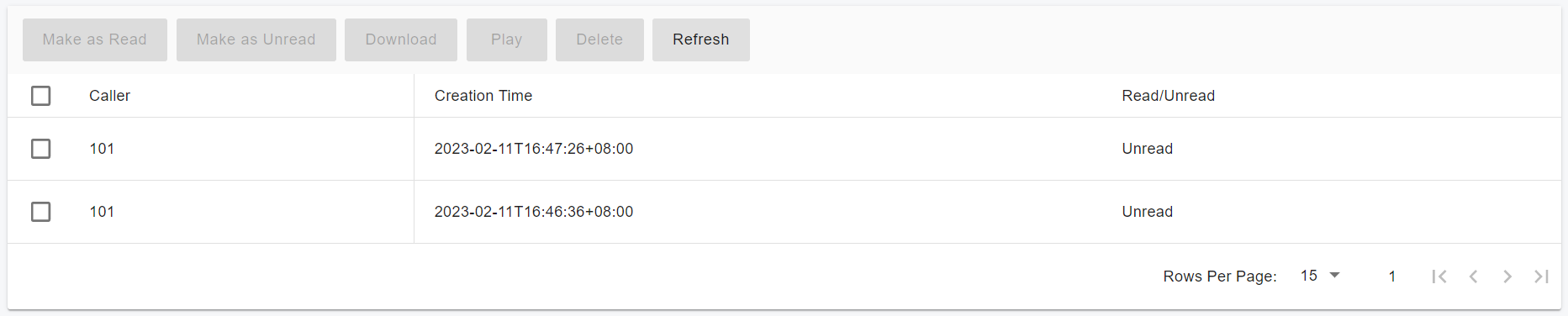
4. Open the **Voicemail** page.
From the voicemail list, you can:
* Play messages
* Download recordings
* Delete voicemails
***
### Best Practices
* Use shared voicemail for **company-wide** or **department-level** calls.
* Assign a **clear display name** so users understand the voicemail purpose.
* Protect shared voicemail with a **PIN** to prevent unauthorized access.
* Enable email notifications to avoid missed messages.