> For the complete documentation index, see [llms.txt](https://support.portsip.com/llms.txt). Markdown versions of documentation pages are available by appending `.md` to page URLs; this page is available as [Markdown](https://support.portsip.com/portsip-communications-solution/portsip-pbx-administration-guide/33-crm-integrations/zoho-crm.md).
# ZOHO CRM
### Zoho CRM Integration Overview
Improve your team’s productivity with **PortSIP PBX’s native Zoho CRM integration**. This integration automatically matches incoming and outgoing calls with **Zoho contacts, leads, and accounts**, and logs call activities—including **call records, call recordings, and AI transcriptions**—to the appropriate CRM records.
By eliminating manual data entry and providing agents with real-time customer context, this integration helps teams work more efficiently and deliver a consistently superior customer experience.
***
### Key Capabilities
#### Caller ID to Contact Name
Inbound calls automatically trigger a Zoho CRM lookup to identify the caller and display the associated contact name.
#### Contact Lookup from PortSIP ONE
When searching by name in **PortSIP ONE for Windows, macOS, or Web Client**, the system queries Zoho CRM and matches contacts based on phone numbers.
#### Automatic Call Journaling
All **trunk calls** are automatically logged in the Zoho Contact Card as CRM call activities. Agents can also append call notes at any time.
#### Create New Contacts Automatically
For calls from unknown numbers, agents can create new **Zoho contacts or leads** directly from the PortSIP PBX client.
#### Recording and AI Transcription Logging
Call recording links and AI transcription links are automatically attached to the corresponding Zoho CRM activity.
***
### Supported Zoho Editions
The PortSIP PBX Zoho CRM integration is supported for the following Zoho CRM editions:
* Standard
* Professional
* Enterprise
* Ultimate
***
### Step 1: Configure the Zoho Application
1. Sign in to the [Zoho Developer Console](https://accounts.zoho.com/developerconsole).
2. Click **Add Client**.
3. Select **Server-based Applications** as the client type.
4. Enter a **Client Name**, for example: `PortSIP PBX Integration`
5. Enter the **Homepage URL**, which is the URL of your PortSIP PBX Admin Console, for example:\
`https://pbx.portsip.com:8887`
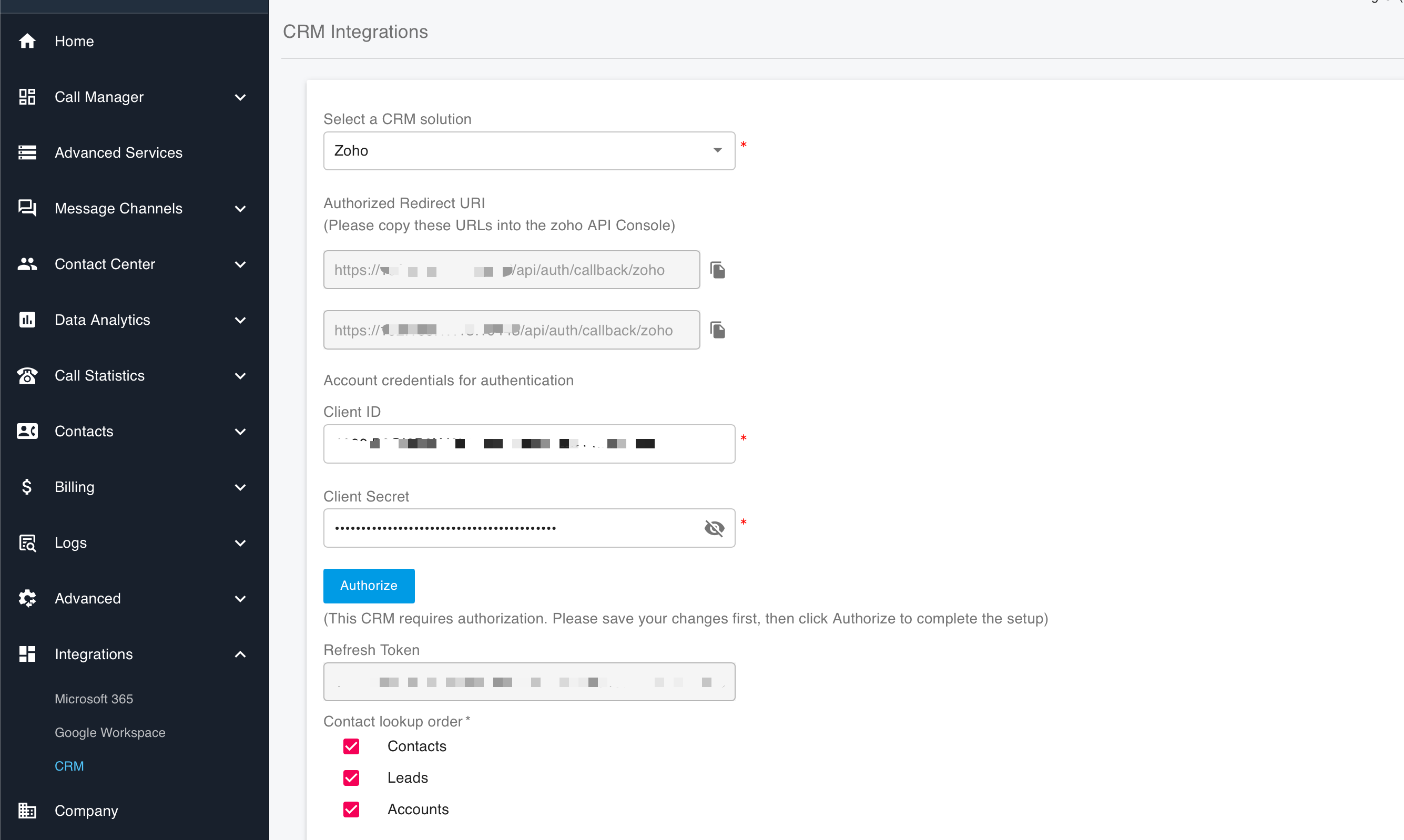
6. In **Authorized Redirect URIs**, add the PortSIP PBX callback URL:\
`https://pbx.portsip.com:8887/api/auth/callback/zoho`
> **Note:** Replace `pbx.portsip.com` with your actual PBX host name.
7. Click **Create**.
8. Zoho will generate a **Client ID** and **Client Secret**.
Securely store the **Client ID** and **Client Secret**. These credentials are required when configuring PortSIP PBX. Treat them as confidential and rotate them immediately if you suspect they have been compromised.
***
### Step 2: Configure PortSIP PBX
#### Enable CRM at the Tenant Level
Log in to the **PortSIP PBX Web Portal** as a **System Administrator**, then navigate to **Tenants**, select the target tenant, and click **Edit**.
Open the **Features** tab and ensure that the **CRM** option is enabled.
> **Important:** CRM integration will not function unless this feature is enabled for the tenant by a System Administrator.
Alternatively, you may sign in directly as the **Tenant Administrator** for the desired tenant.
***
#### Configure Zoho CRM Integration
1. Navigate to **Integrations > CRM**.
2. From the **Select a CRM solution** dropdown, choose **Zoho**.
3. Enter the **Client ID** and **Client Secret** obtained in Step 1.
***
#### Configure CRM Behavior
#### Contact Lookup Order
Define the priority for Zoho CRM searches:
* Contacts
* Leads
* Accounts
#### Query CRM
Specify when PortSIP PBX should query Zoho CRM:
* **Always query**
* **Only when not found in PBX CRM contacts**
#### Log Calls as Activities
Enable this option to automatically log calls as Zoho CRM activities.
When enabled, a call recording link can be included in the activity:
* **Private Recording Link** – Authentication with PortSIP PBX is required to access the recording.
* **Public Recording Link** – Authentication with PortSIP PBX is not required.
#### Create Contacts for New Numbers
Allow agents to create CRM records when calls come from unknown numbers.
Choose the record type to create:
* Contact
* Lead
#### Zoho Region
Select the region where your Zoho account is hosted:
* United States (US)
* Europe (EU)
* India (IN)
* Japan (JP)
* Canada (CA)
* Saudi Arabia (SA)
***
#### Authorize Zoho Access
1. Click **Authorize**. A new browser tab will open.
2. Sign in using the **Zoho user account** that should grant access *(do not use a developer account)*.
3. Click **Accept** to authorize PortSIP PBX to access Zoho CRM data.
Once authorization is complete, the integration becomes active immediately.