> For the complete documentation index, see [llms.txt](https://support.portsip.com/llms.txt). Markdown versions of documentation pages are available by appending `.md` to page URLs; this page is available as [Markdown](https://support.portsip.com/portsip-communications-solution/configuring-sip-trunks/questblue-sip-trunk/questblue-sms-integration.md).
# QuestBlue SMS Integration
{% hint style="warning" %}
As you are looking to integrate SMS, It is required that for outbound messaging, you must also register a Brand and Campaign through your QuestBlue customer portal as required by the TCR.
{% endhint %}
### Prerequisite: Purchase an SMS/MMS-Enabled DID
Before proceeding, ensure that you have [purchased a DID on the QuestBlue platform with SMS/MMS capability enabled](/portsip-communications-solution/configuring-sip-trunks/questblue-sip-trunk/purchase-a-did-on-questblue-platform.md).\
This is required for PortSIP PBX to send and receive SMS or MMS messages through QuestBlue.
***
### Obtain the QuestBlue API Key
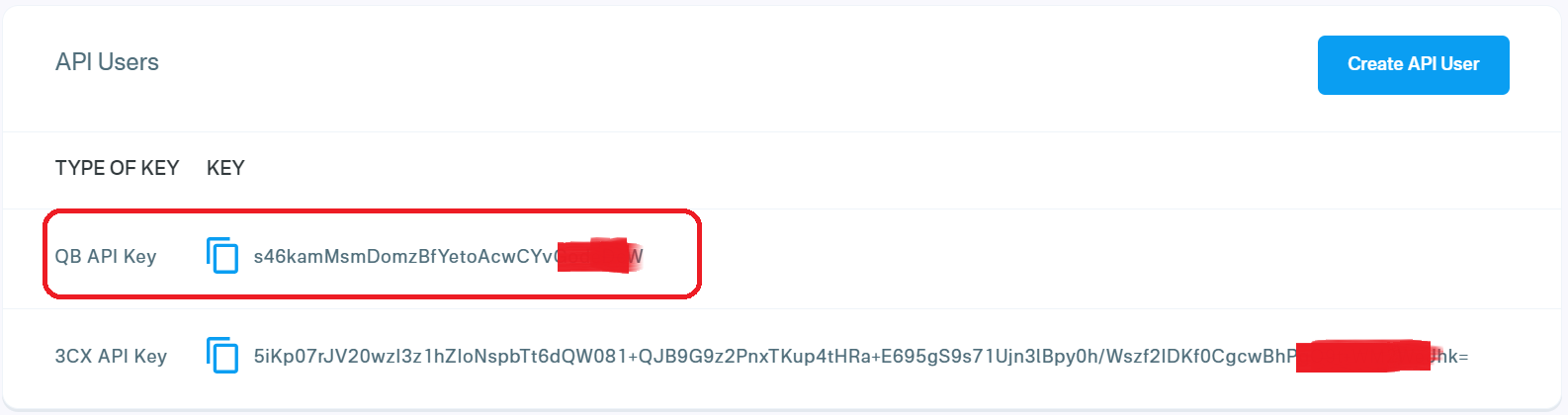
PortSIP PBX uses the **QuestBlue API key** to authenticate and send SMS/MMS messages.
To retrieve your QuestBlue API key, follow these steps:
1. Sign in to your [QuestBlue online account](https://customer.questblue.com/).
2. Navigate to **API Management**.
3. Locate and securely record the **QB API Key**.
> ❗**Security Note**\
> Treat the API key as sensitive credentials. Do not share it publicly, and store it securely. If the key is compromised, regenerate it immediately from the QuestBlue portal.
***
### Configure SMS with a QuestBlue Trunk in PortSIP PBX
Before configuring SMS in PortSIP PBX, ensure that a **QuestBlue SIP trunk** has already been configured using **one of the following guides**:
* [Configuring QuestBlue Register Based Trunk](/portsip-communications-solution/configuring-sip-trunks/questblue-sip-trunk/configuring-questblue-register-authentication-trunk.md)
* [Configuring QuestBlue IP Based Trunk](/portsip-communications-solution/configuring-sip-trunks/questblue-sip-trunk/configuring-questblue-register-authentication-trunk.md)
***
#### Sign in to the PortSIP PBX Web Portal
You can access the tenant configuration in one of the following ways:
**Option 1: Sign in as System Administrator**
1. Sign in to the PortSIP PBX Web Portal as a **System Administrator**.
2. Navigate to **Tenants**.
3. Select the desired tenant and click **Manage** to switch to that tenant’s administration context.
**Option 2: Sign in as Tenant Administrator**
* Sign in directly as a **Tenant Administrator** to manage the tenant.
> ❗**Note**\
> For more information about tenant roles and access, see [Tenant Management](/portsip-communications-solution/portsip-pbx-administration-guide/3-tenant-management.md).
***
### Add an SMS Configuration
Follow these steps to configure SMS/MMS using the QuestBlue trunk:
1. In the PortSIP PBX Web Portal, navigate to **SMS/MMS** from the left-hand menu.
2. Click **Add**.
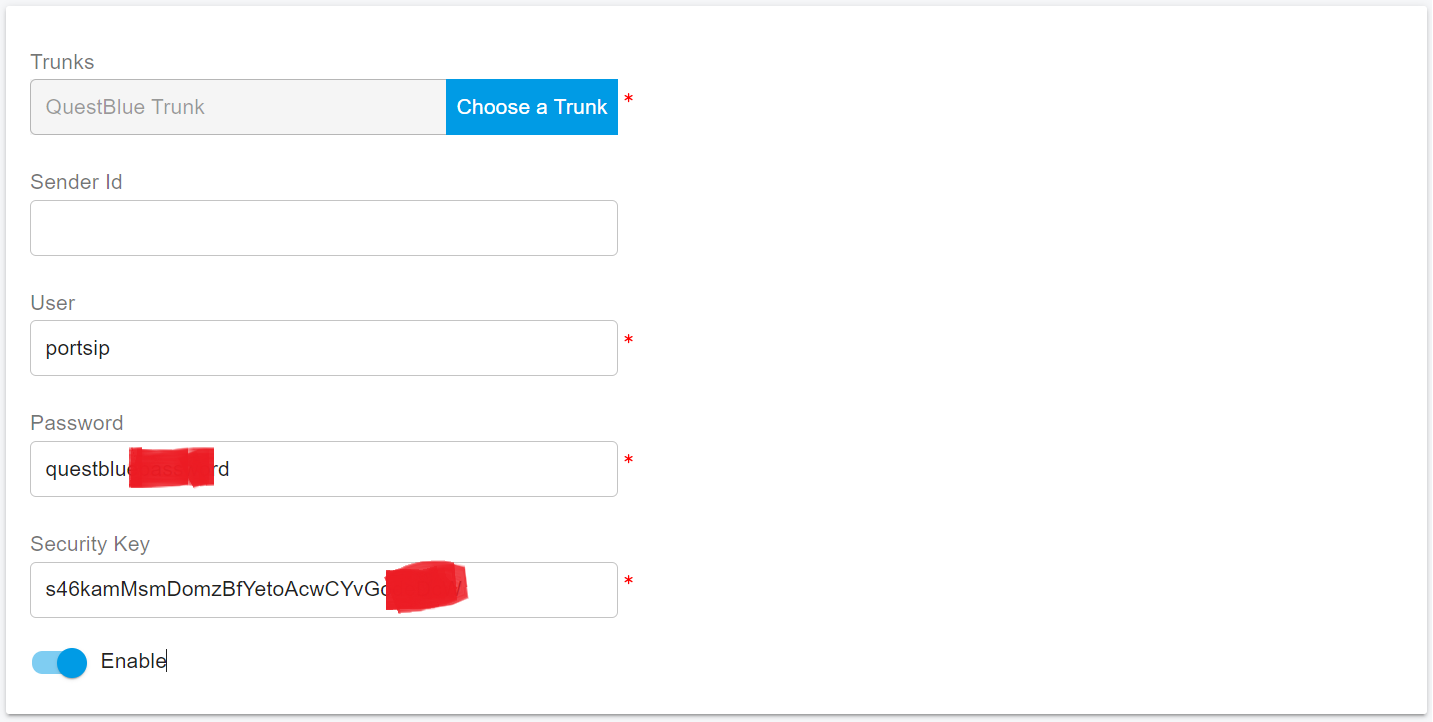
3. From the **Trunk** drop-down list, select your **QuestBlue trunk**.
4. Enter the QuestBlue credentials:
* **User**: Enter your QuestBlue username.
* **Password**: Enter your QuestBlue account password.
* **Security Key**: Paste the [QuestBlue QB API Key](#obtain-the-questblue-api-key) obtained earlier.
5. Click **OK** to save the configuration.
***
#### Copy the Webhook URL
After the SMS configuration is created:
* You will be returned to the **SMS/MMS list** page.
* Select the SMS configuration and click **Copy Webhook** to copy the Webhook URL.
Alternatively:
* Double-click the SMS configuration to open its details page, then copy the **Webhook URL** from there.
> ❗**Important**\
> The Webhook URL is required for QuestBlue to deliver inbound SMS/MMS messages to PortSIP PBX. Do not modify this URL unless instructed.
***
### Configure SMS in the QuestBlue Platform
To enable inbound SMS delivery to PortSIP PBX, you must configure the SMS webhook for the DID on the QuestBlue platform.
Follow these steps:
1. Sign in to your [QuestBlue account](https://customer.questblue.com/).
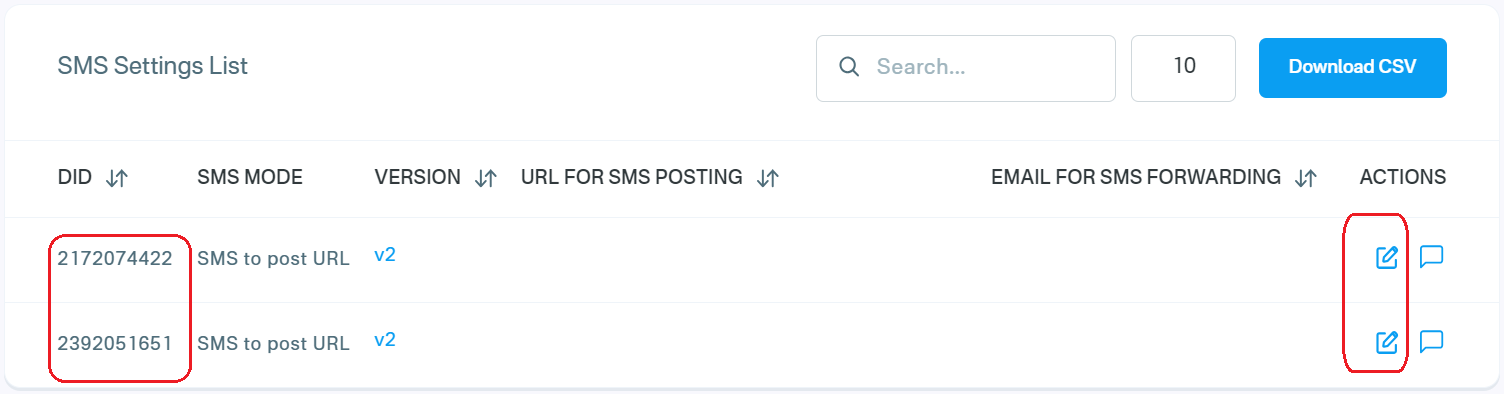
2. Navigate to **Messaging > SMS Settings**.
* A list of SMS-enabled DIDs will be displayed.
3. Click the **Edit (pencil)** icon next to the DID for which you want to enable SMS.
***
#### Configure the SMS Webhook
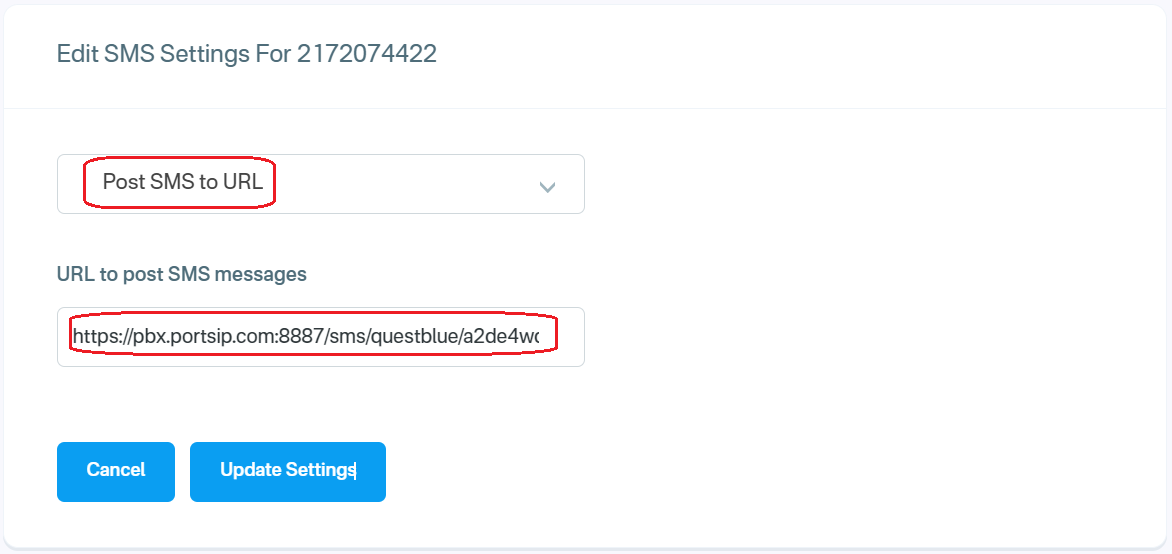
4. On the **SMS Settings** page:
* From the **SMS Handling** (or equivalent) drop-down list, select **Post SMS to URL**.
* In the **URL to post SMS Message** field, paste the **PortSIP PBX Webhook URL** that you copied earlier.
5. Click **Update Settings** to save the configuration.
***
### Verify the Configuration
At this point, the QuestBlue SMS/MMS integration is complete.
You can now [create outbound and inbound rules](/portsip-communications-solution/configuring-sip-trunks/questblue-sip-trunk/configuring-outbound-and-inbound-calls.md) in PortSIP PBX to send and receive SMS/MMS messages using the QuestBlue trunk, just as you would configure rules for outbound and inbound voice calls.