> For the complete documentation index, see [llms.txt](https://support.portsip.com/llms.txt). Markdown versions of documentation pages are available by appending `.md` to page URLs; this page is available as [Markdown](https://support.portsip.com/portsip-communications-solution/configuring-sip-trunks/twilio-sip-trunk/configuring-twilio-register-based-trunk.md).
# Configuring Twilio Register Based Trunk
Before proceeding with the next steps, you need to [purchase a DID on Twilio](/portsip-communications-solution/configuring-sip-trunks/twilio-sip-trunk/purchase-a-did-on-the-twilio.md).
***
### Create a SIP Trunk on the Twilio Platform
To create a new SIP trunk on the Twilio platform, follow these steps:
1. Sign in to your [Twilio Console](https://console.twilio.com/).
2. From the left-hand navigation bar, go to **Elastic SIP Trunking**
* Alternatively, click the **Elastic SIP Trunking** icon in the left vertical navigation bar.
3. Navigate to **Manage > Trunks**.
4. Click **Create new SIP Trunk**.
5. Enter a **friendly name** for the trunk, then click **Create**.
***
### Configure Trunk Termination
After creating the SIP trunk, leave all settings on the **General** page unchanged and proceed to the **Termination** section.\
This section defines where outbound calls from PortSIP PBX are sent to Twilio.
#### Step 1: Configure the Termination SIP URI
1. In the **Termination** section, enter a **unique Termination SIP URI** of your choice.
2. If the URI is displayed as **Available** (shown in green), it is valid and can be used.
> ❗**Important**\
> Note the full Termination SIP URI (for example, `portsip-pbx.pstn.twilio.com`).\
> This value will be required later when configuring the SIP trunk in **PortSIP PBX**.\
> Your URI must be unique and will differ from the example shown here.
***
#### Step 2: Configure Authentication (IP ACL)
1. Scroll down to the **Authentication** section.
2. Under **IP Access Control Lists (IP ACLs)**, create a new ACL entry.
3. Add the **public static IP address of your PortSIP PBX**.
* You can find this IP address on the **PortSIP PBX Home** page.
> ❗**Best Practice**\
> IP-based authentication improves security by ensuring that only your PBX is allowed to send traffic to Twilio.
***
#### Step 3: Configure Credential List (Optional / Recommended)
1. In the **Credential List** section, create a **username and password** pair.
2. Save the credentials.
3. Click **Create** to save the Termination configuration.
4. Once completed, navigate to the **Origination** page to continue the Twilio trunk setup.
> ❗**Note**\
> These credentials will also be used later when configuring the **Twilio SIP trunk in PortSIP PBX**.
***
### Configure Trunk Origination
In the **Origination** section, you define how inbound calls from **Twilio** are routed **to PortSIP PBX**.
You will add one or more **Origination SIP URIs** that point to your PortSIP PBX.
> ❗**Prerequisite**\
> Ensure your PortSIP PBX has a **static public IP address or FQDN**.\
> This information is available on the **PortSIP PBX Web Portal Home** page.
***
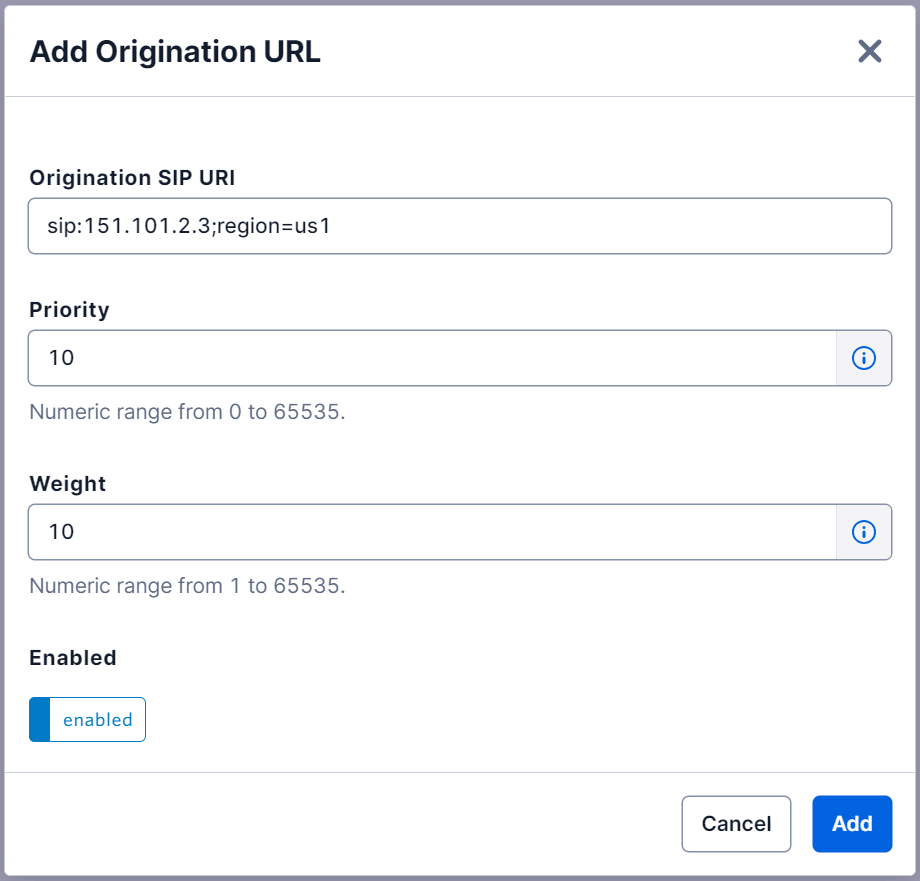
#### Step 1: Add the Primary Origination URI (US1)
1. In the **Origination** section, locate the **Origination SIP URI** configuration.
2. Enter the SIP URI in the following format (replace with your own PBX IP or FQDN):
```
sip:151.101.2.3;region=us1
```
3. Set the following values:
* **Priority**: `10`
* **Weight**: `10`
4. Click **Add**.
> ❗**Explanation**\
> This configuration routes inbound SIP traffic from the **Twilio US1 (Virginia)** data center to your PortSIP PBX and restricts origination to that region.
***
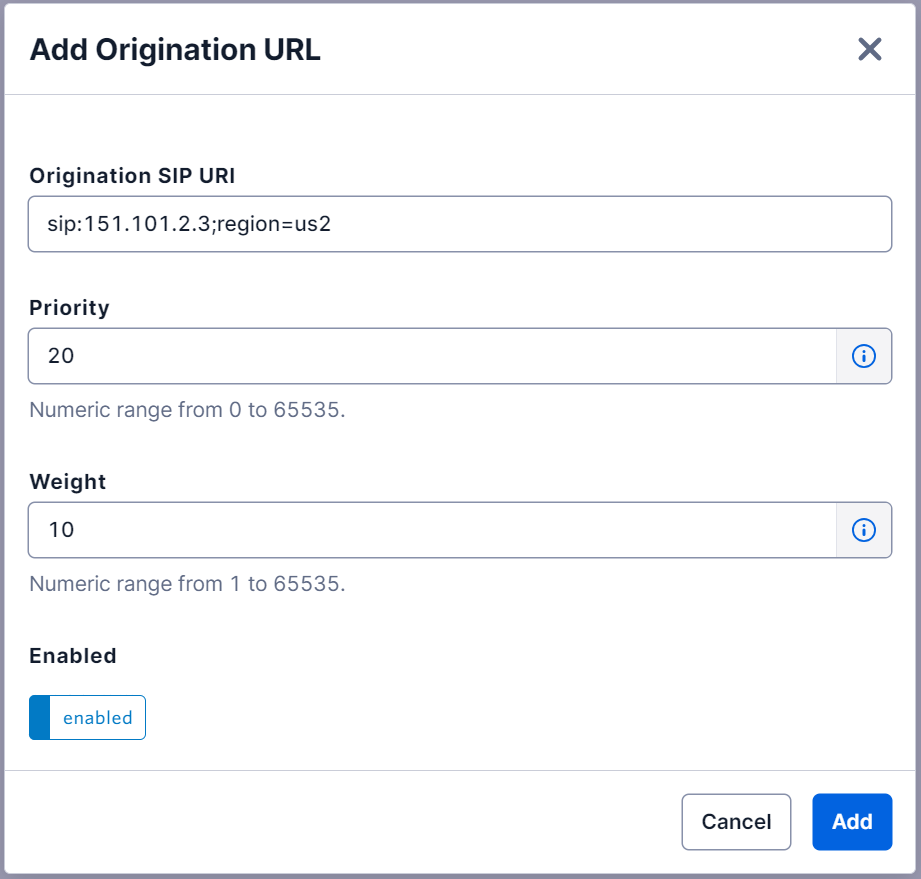
#### Step 2: Add a Secondary Origination URI (US2 – Failover)
To provide regional redundancy, add a secondary Origination URI:
1. Click the **plus (+)** icon next to **Origination URI**.
2. Enter the following SIP URI (replace with your own PBX IP or FQDN):
```
sip:151.101.2.3;region=us2
```
3. Set the following values:
* **Priority**: `20`
* **Weight**: `10`
4. Click **Add**.
> **Explanation**\
> This URI allows Twilio to route inbound calls from the **US2 (Oregon)** data center **only if** the primary US1 region is unable to deliver the call.
#### Expected Result
* Inbound calls from Twilio will first attempt delivery via **US1 (Virginia)**.
* If US1 is unavailable, calls will automatically fail over to **US2 (Oregon)**.
* PortSIP PBX will receive inbound SIP traffic securely and predictably.
***
### Assign DID Numbers to Your Elastic SIP Trunk
After creating the Elastic SIP Trunk, you must assign one or more DID numbers to it.
Follow these steps in the **Twilio Console**:
1. From the left-hand navigation menu, go to\
**Phone Numbers > Manage > Active Numbers**.
2. Click the **phone number** you want to assign to the SIP trunk.
3. On the number details page, locate the **Voice Configuration** section.
4. For **Configure with**, select **SIP Trunk**.
5. In the **SIP Trunk** drop-down list, choose the **Elastic SIP Trunk** you created earlier.
6. Click **Save Configuration**.
The selected DID number is now **associated with your Elastic SIP Trunk**. Inbound calls to this number will be routed through the SIP trunk to **PortSIP PBX**.
***
### Configure the Twilio Register-Based Trunk in PortSIP PBX
The **Twilio Register-Based Trunk** corresponds to a **Register-Based Trunk** in PortSIP PBX.
You can configure this trunk at **either** of the following levels:
* **System Administrator level**
* The trunk can be **shared with one or more tenants**.
* **Tenant Administrator level**
* The trunk can be **used only by that tenant** and cannot be shared.
***
#### Step 1: Create the Register-Based Trunk
1. Sign in to the **PortSIP PBX Web Portal** as a **System Administrator** or **Tenant Administrator**.
2. From the left-hand navigation menu, go to **Call Manager > Trunks**.
3. Click **Add**, then select **Register Based Trunk**.
***
#### Step 2: Configure Basic Trunk Settings
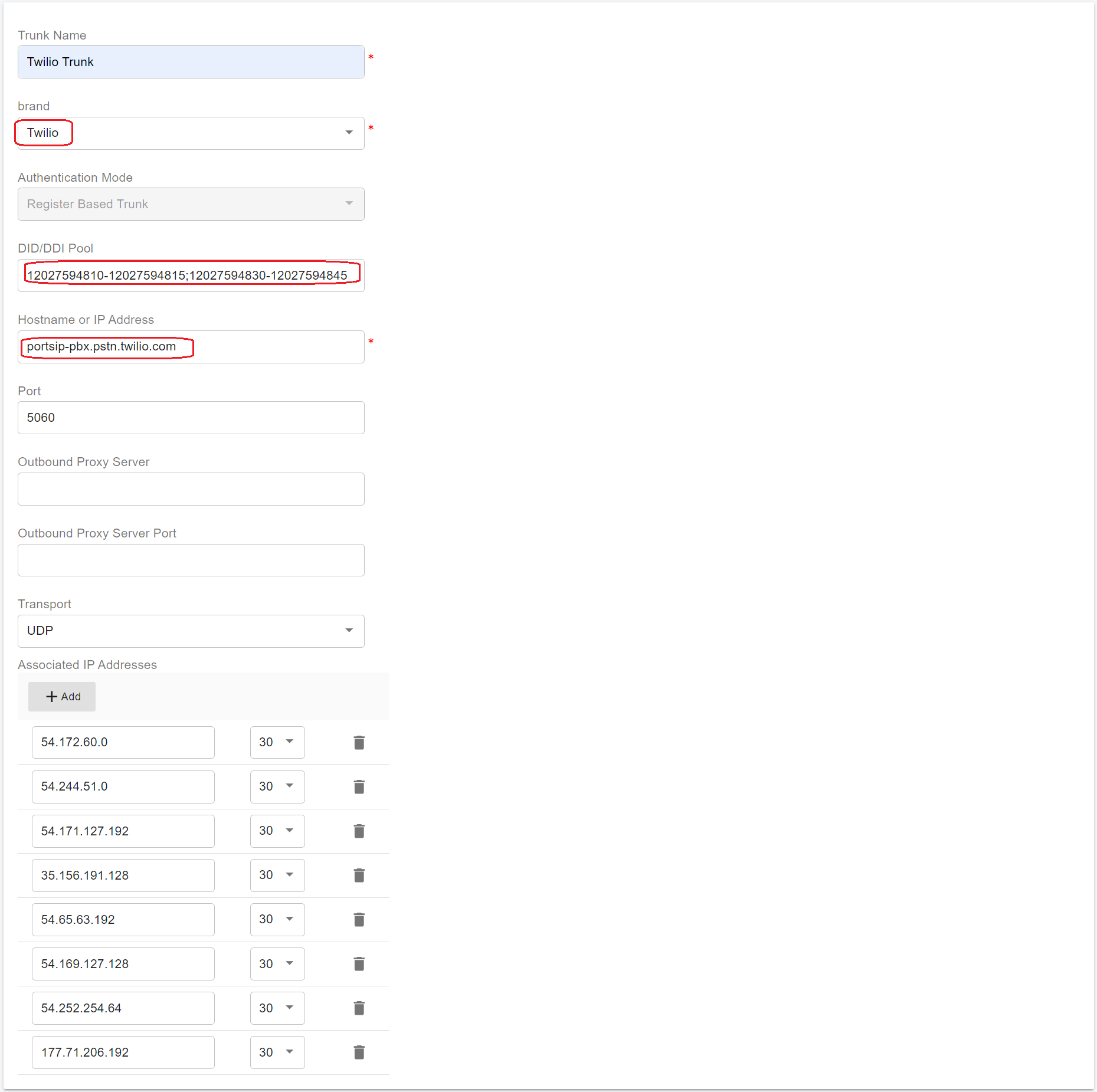
Enter the following information:
* **Name**\
Enter a friendly name for the trunk (for example, `Twilio-Reg-Trunk`).
* **Brand**\
Select **Twilio**.
* **DID Pool** *(Tenant Admin level only)*\
If you are configuring the trunk at the **Tenant Administrator level**, specify the Twilio DID numbers assigned to this tenant.
> ❗**Important**
>
> The tenant can use **only the DID numbers in its DID pool** to:
>
> * Create inbound and outbound call rules
> * Configure outbound caller IDs for extensions
**DID Pool Format Examples**
```
12027594810
12027594810;12027594815
12027594810-12027594815;12027594820
12027594810-12027594815;12027594830-12027594845
```
* **Hostname or Address**\
Enter the **Twilio Trunk Termination URI** created earlier, for example:
```
portsip-pbx.pstn.twilio.com
```
Click **Next** to continue.
***
#### Step 3: Configure Authentication Credentials
1. Enter the **Authentication Name** and **Password** that were created earlier in the **Twilio Credential List**.
2. Click **Next**.
***
#### Step 4: Configure Trunk Options
* **Need Registration**\
**Disable** this option.
> ❗Twilio Elastic SIP Trunking does **not** accept SIP `REGISTER` messages.
* **Max Concurrent Calls**\
Defines the maximum number of simultaneous calls that PortSIP PBX can establish using this trunk.
* Adjust this value according to your Twilio capacity and expected call volume.
Leave all other settings at their default values unless you have specific requirements.
Click **Next** to continue.
***
#### Step 5: Assign Tenants and DID Pool *(System Admin level only)*
> ❗**Note**\
> This step is available **only** when configuring the trunk at the **System Administrator level**.
1. Assign the trunk to one or more tenants.
2. Provide Twilio DID numbers to each tenant using the **DID Pool**.
> ❗**Important**
>
> * Each DID can be assigned to **only one tenant**.
> * A tenant can use **only the DID numbers in its DID pool** to:
> * Create inbound and outbound call rules
> * Configure outbound caller IDs for extensions
**DID Pool Format Examples**
```
12027594810
12027594810;12027594815
12027594810-12027594815;12027594820
12027594810-12027594815;12027594830-12027594845
```
Click **OK** to save the configuration.
***
#### Expected Result
* The trunk configuration is now complete.
* Because **Need Registration** is disabled, the trunk status will **always display as Online** in the trunk list. This is expected and correct behavior for Twilio Elastic SIP Trunks.
***
### Next Steps
* Refer to[ Twilio Elastic SIP Trunking](https://www.twilio.com/docs/sip-trunking) documentation for platform-specific details.
* Proceed to [Configuring inbound and outbound calls](/portsip-communications-solution/configuring-sip-trunks/twilio-sip-trunk/configuring-outbound-and-inbound-calls.md) in PortSIP PBX.